> For the complete documentation index, see [llms.txt](https://help.clickatell.com/llms.txt). Markdown versions of documentation pages are available by appending `.md` to page URLs; this page is available as [Markdown](https://help.clickatell.com/integrations/salesforce/add-new-connected-app-salesforce.md).
# Add new Connected App - Salesforce
{% hint style="success" %}
If you’ve already set up a Connected App for your integration with Clickatell, you can log in to Salesforce and [follow these steps](/integrations/salesforce/find-configuration-details-salesforce.md) to find the required integration details.
{% endhint %}
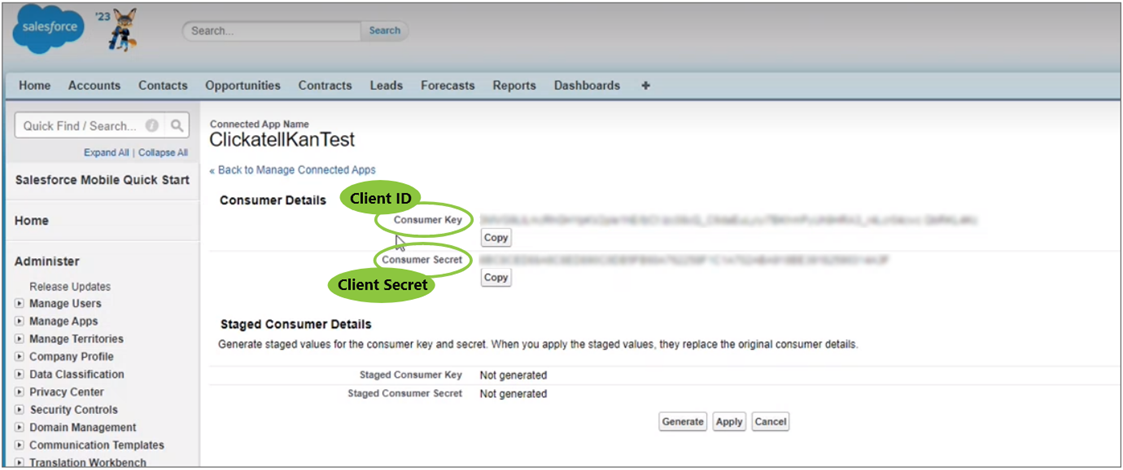
To [integrate ](/integrations/getting-started/adding-a-new-integration.md)with Salesforce, you need to copy over the **Client ID** and **Client Secret** from Salesforce into the Clickatell Portal. These are unique and get generated when you add a new Connected App in Salesforce.
## Create a new Connected App in Salesforce
{% hint style="info" %}
Salesforce is very customizable. The screen in your account might differ slightly from the one in these screenshots.
{% endhint %}
{% hint style="warning" %}
You need Salesforce Admin credentials to create a connected app.
{% endhint %}
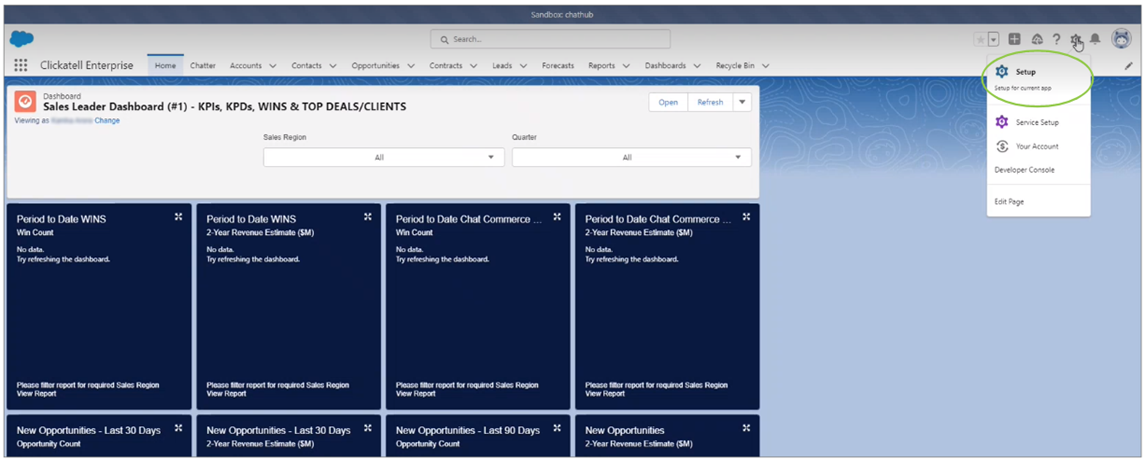
1. Log in to your Salesforce account.
2. Go to *Settings -> Setup.*
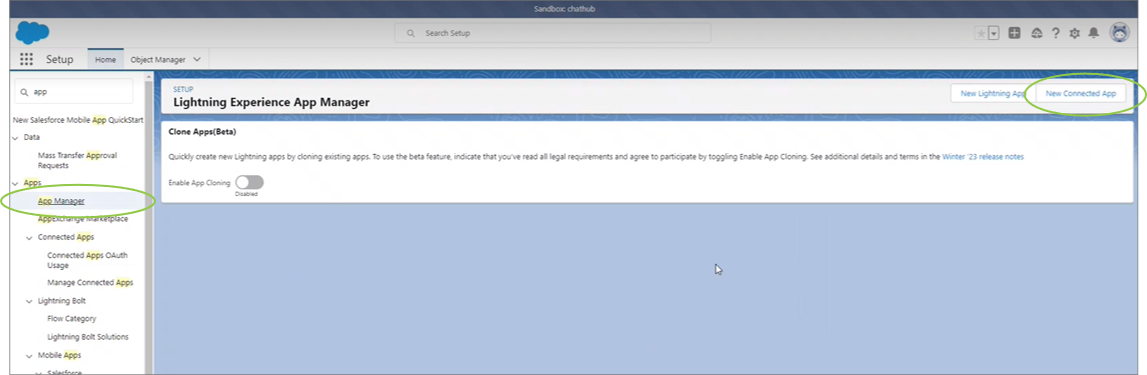
3. Search for “App Manager” and click *New Connected App.*
{% hint style="info" %}
If you do not see App Manager as an option, please ask your Salesforce Admin to follow the steps in this document and provide the details you require for the setup in the Clickatell Portal.
{% endhint %}
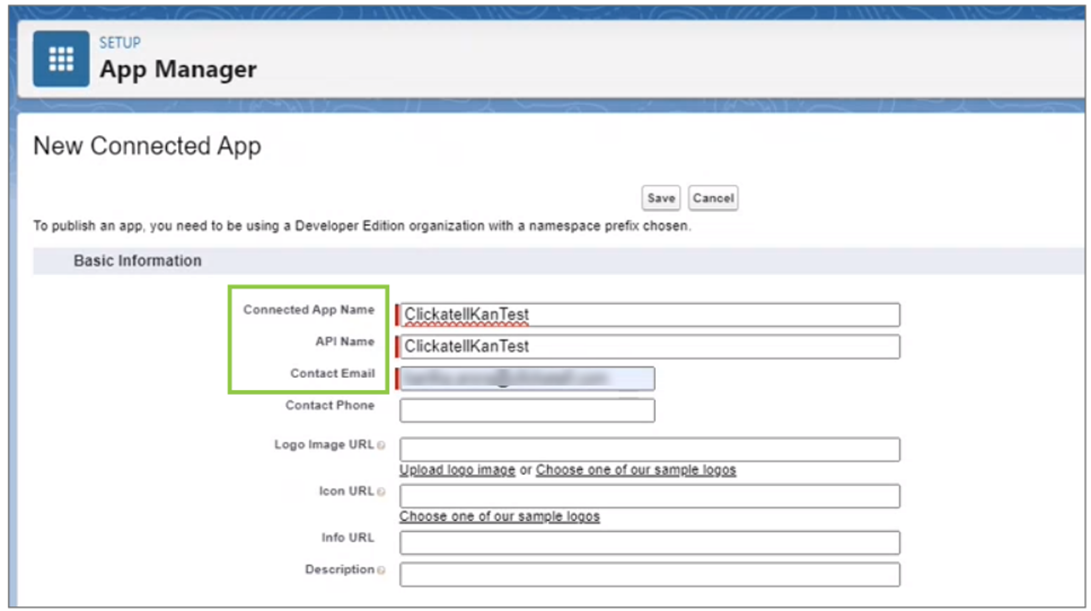
4. Complete the first three required fields. *(You can also complete other optional fields.)*
* **Connected App Name:** Give any name to your new connected app in Salesforce.
* **API Name:** This automatically populates based on what you’ve entered above.
* **Contact email:** Enter an email where you can be contacted and where the OTP will be sent.
5. Select “*Enable OAuth Settings*”.
6. Add the callback URL:
7. Add the following scopes:
* *Full access (full)*
* *Mange user data via APIs (api)*
* *Perform requests at any time (refresh\_token, offline\_access)*
8. Ensure this first item is **not** checked:
9. Click *Save* at the bottom of the page.
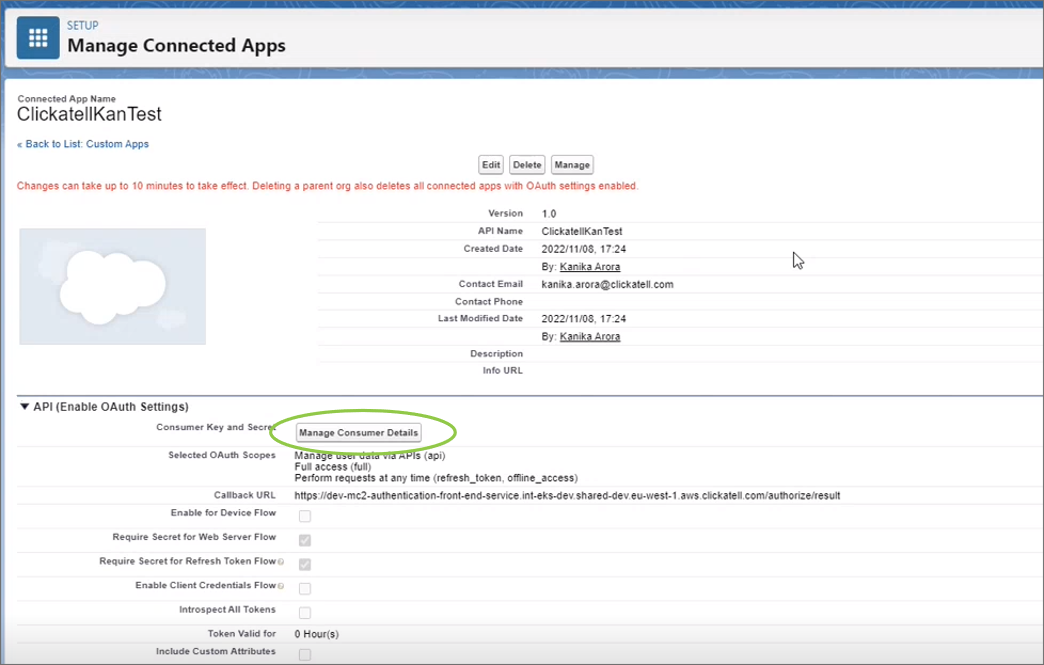
10. Continue to the next page and click *Manage Consumer Details*.
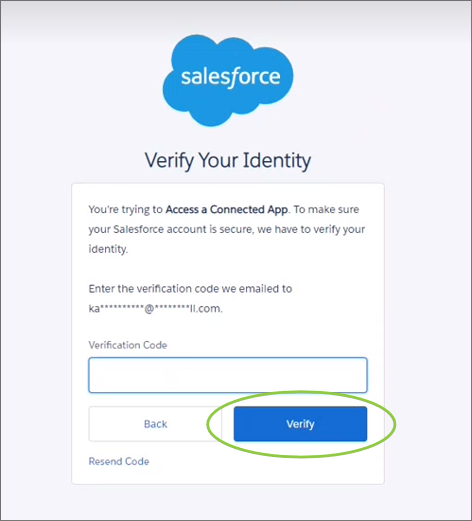
11. Enter the verification code that is emailed to you and click *Verify*.
12. The [configuration details required](/integrations/salesforce/find-configuration-details-salesforce.md) in the Clickatell Portal are displayed.
---
# Agent Instructions
This documentation is published with GitBook. GitBook is the documentation platform designed so that both humans and AI agents can read, navigate, and reason over technical content effectively. Learn more at gitbook.com.
## Querying This Documentation
If you need additional information that is not directly available in this page, you can query the documentation dynamically by asking a question.
Perform an HTTP GET request on the current page URL with the `ask` query parameter, and the optional `goal` query parameter:
```
GET https://help.clickatell.com/integrations/salesforce/add-new-connected-app-salesforce.md?ask=&goal=
```
`ask` is the immediate question: it should be specific, self-contained, and written in natural language.
`goal` is optional and describes the broader end goal you are ultimately trying to accomplish on behalf of the user. GitBook uses it to tailor the answer towards what is most useful for that goal.
The response will contain a direct answer to the question and relevant excerpts and sources from the documentation.
Use this mechanism when the answer is not explicitly present in the current page, you need clarification or additional context, or you want to retrieve related documentation sections.