> For the complete documentation index, see [llms.txt](https://help.clickatell.com/llms.txt). Markdown versions of documentation pages are available by appending `.md` to page URLs; this page is available as [Markdown](https://help.clickatell.com/clickatell-ai/training/configure-intents.md).
# Configure intents
An [intent recognition assistant](/clickatell-ai/assistants/set-up-your-assistants.md#type) is trained to identify specific intents from user inputs and uses a reasoning process to ask questions until all intents are identified.
You must create an **intent set** first before adding an [intent recognition assistant](/clickatell-ai/assistants/overview.md#additional-assistants) to link it to.
## Create intent sets
Intent sets are groups of related intents, called **intent slots**, that must be identified. The system asks questions to gather the information needed to fill the required slots. If it cannot identify all slots in the initial input, it will ask follow-up questions until it reaches the predefined loop limit.
To create a new intent set:
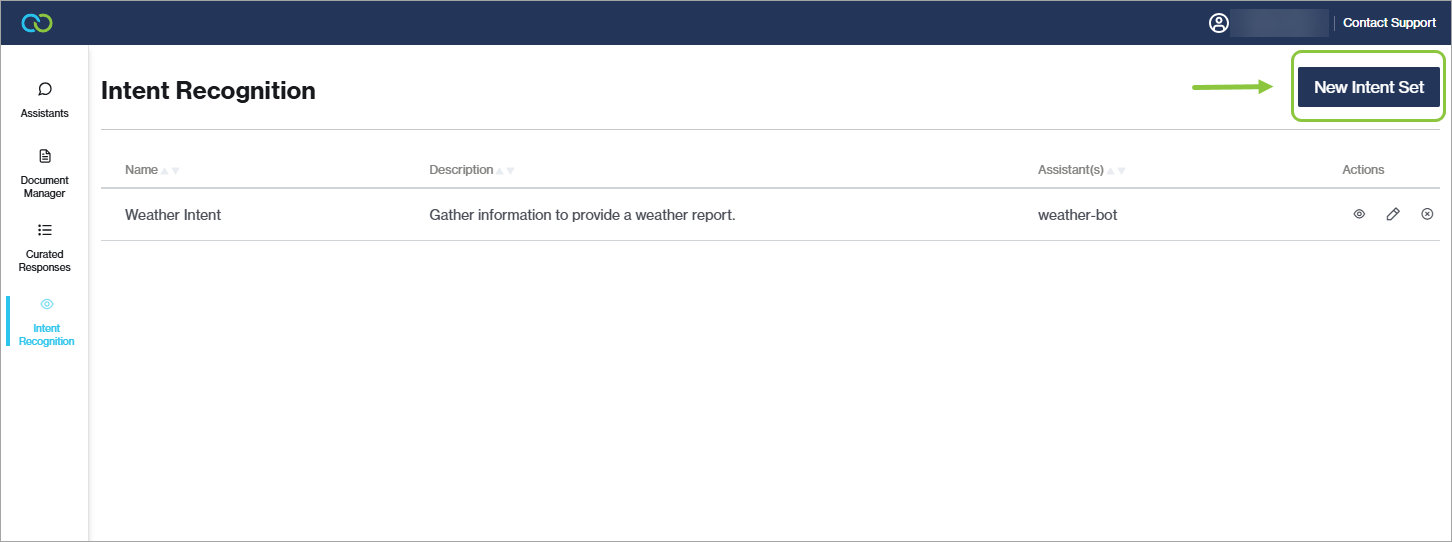
1. Click *New Intent Set* on the *Intent Recognition* tab*.*
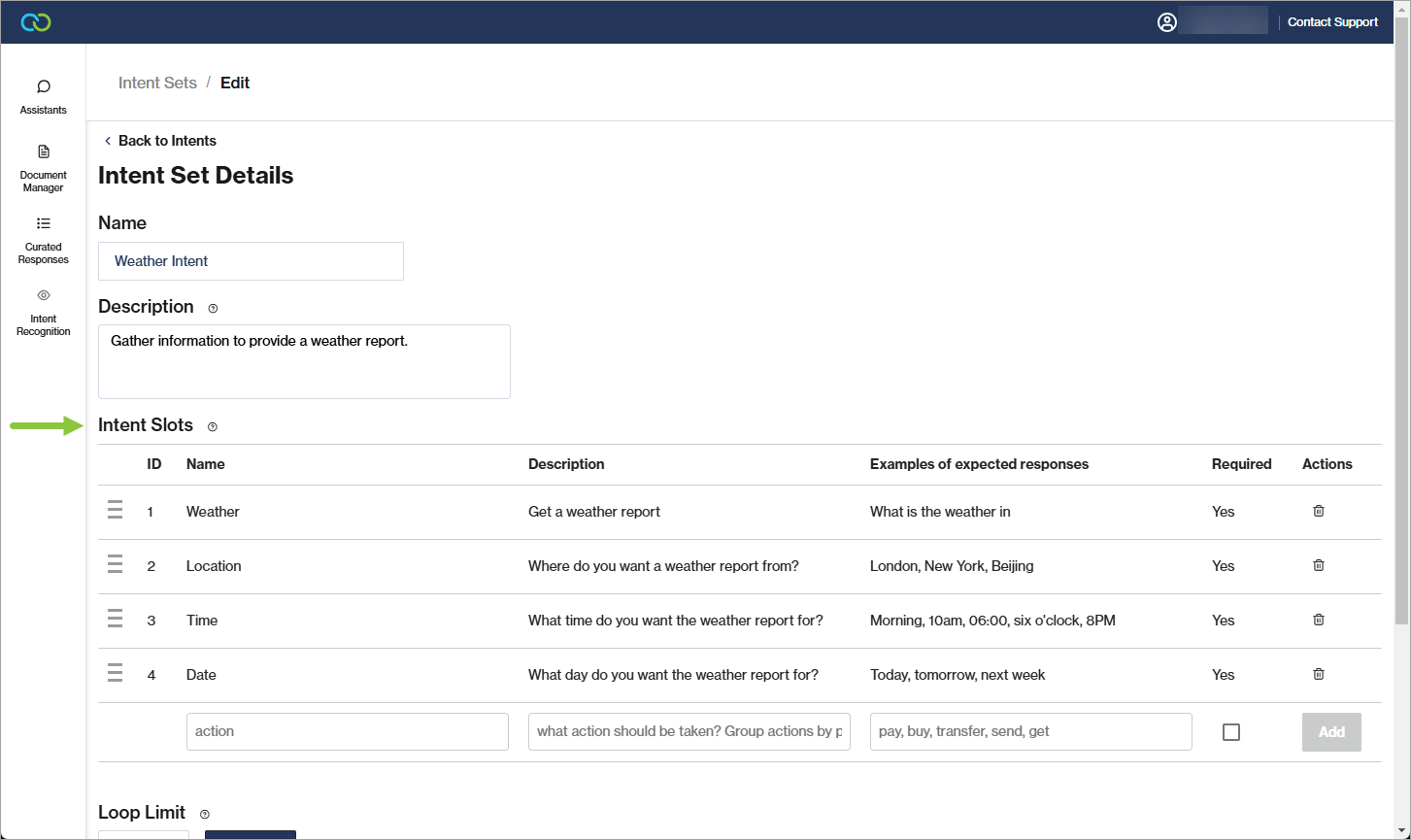
2. Add a **name** and **description** for the intent set. These are for internal reference only so you can easily identify them.
3. Add **intent slots**. These are specific pieces of information that must be identified to fulfill an intent.
1. **Name:** Enter a name for the intent slot.
2. **Description:** The description helps the system understand what to look for.
3. **Examples of expected responses:** Provide examples of what responses the system can expect for this slot. This does not have to be a complete list.
4. **Required flag:** The required flag indicates whether the slot *must* be identified for the intent to be considered complete.
4. Set a **loop limit** (max. 20) to prevent infinite loops. This limit defines the maximum number of attempts the system will make to identify all required slots before displaying the failed attempt message (see below). A reasonable default, 3-5, is recommended to prevent a poor user experience.
5. Enter a **failed attempt message.** This message is displayed to the end-user when the loop limit has been reached (see above). This message should guide the user to rephrase, or offer to transfer them to a (human) agent.
6. *Save*.
#### **Example 1**
*USER: What is the weather in Cape Town tomorrow morning?*
* The system classifies this as a **weather intent.**
* “Cape Town” is detected as a **location slot** and "tomorrow morning” as a **date\_time slot**.
#### **Example 2**
*USER: “I owe Lisa money”*
*ASSISTANT: "Do you want to pay her back? How much would you like to pay?"*
*USER: "Yes, 120."*
*ASSISTANT: "To confirm, you want to pay 120 dollars to Lisa from your savings account. Is that correct? Tap below to pay now.”*
*USER: \* Taps button \**
* In this scenario, the bot understood the initial request, and then filled the intent slots with the information gathered by asking a few questions:
* the action (pay),
* the amount (120),
* the currency (USD), and
* the recipient (Lisa)
* The assistant gathers this information conversationally and passes it to the back-end, to execute the end-user's request.
---
# Agent Instructions
This documentation is published with GitBook. GitBook is the documentation platform designed so that both humans and AI agents can read, navigate, and reason over technical content effectively. Learn more at gitbook.com.
## Querying This Documentation
If you need additional information that is not directly available in this page, you can query the documentation dynamically by asking a question.
Perform an HTTP GET request on the current page URL with the `ask` query parameter, and the optional `goal` query parameter:
```
GET https://help.clickatell.com/clickatell-ai/training/configure-intents.md?ask=&goal=
```
`ask` is the immediate question: it should be specific, self-contained, and written in natural language.
`goal` is optional and describes the broader end goal you are ultimately trying to accomplish on behalf of the user. GitBook uses it to tailor the answer towards what is most useful for that goal.
The response will contain a direct answer to the question and relevant excerpts and sources from the documentation.
Use this mechanism when the answer is not explicitly present in the current page, you need clarification or additional context, or you want to retrieve related documentation sections.