Edit/delete a workflow
Edit a workflow
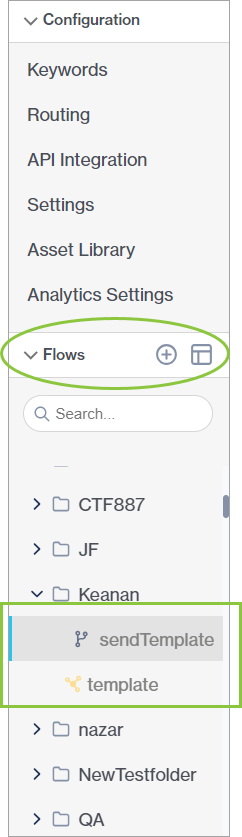
Workflows are listed either individually or grouped into folders in the panel on the left. Standard flows have a grey icon and dynamic API flows have a different yellow icon.
Search and select the flow you want to edit from the list.
Click on the node to edit the information in the panel on the right.
Save your node and your workflow after making any changes.
Delete a workflow
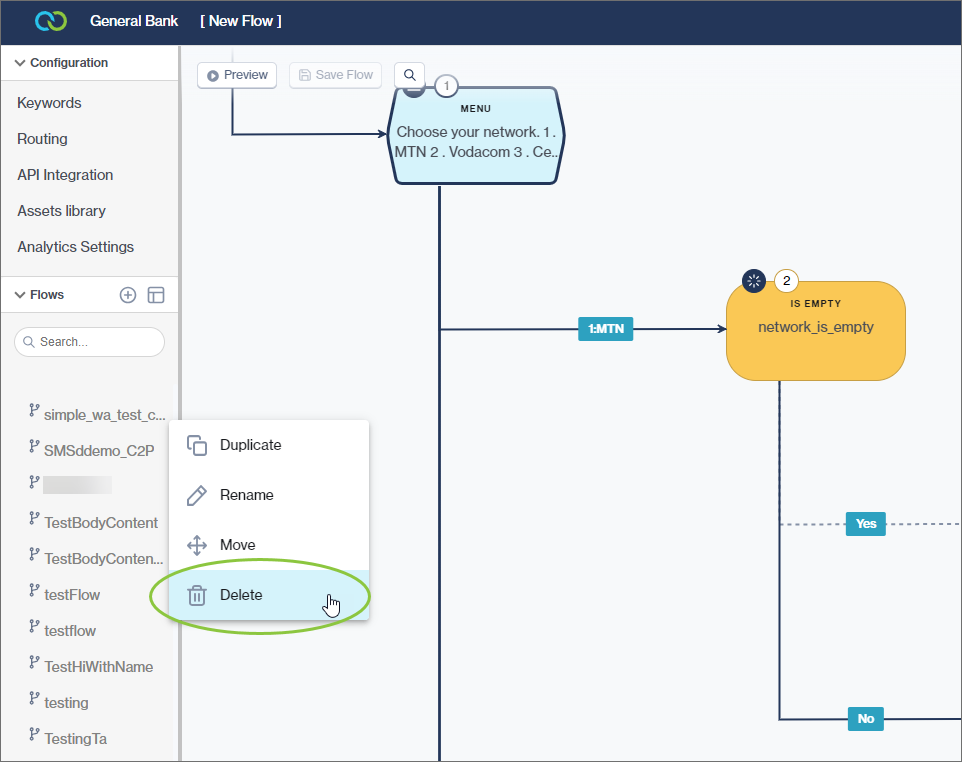
Click the three dots icon next to the flow you want to delete to access a drop-down menu.
Select "Delete".
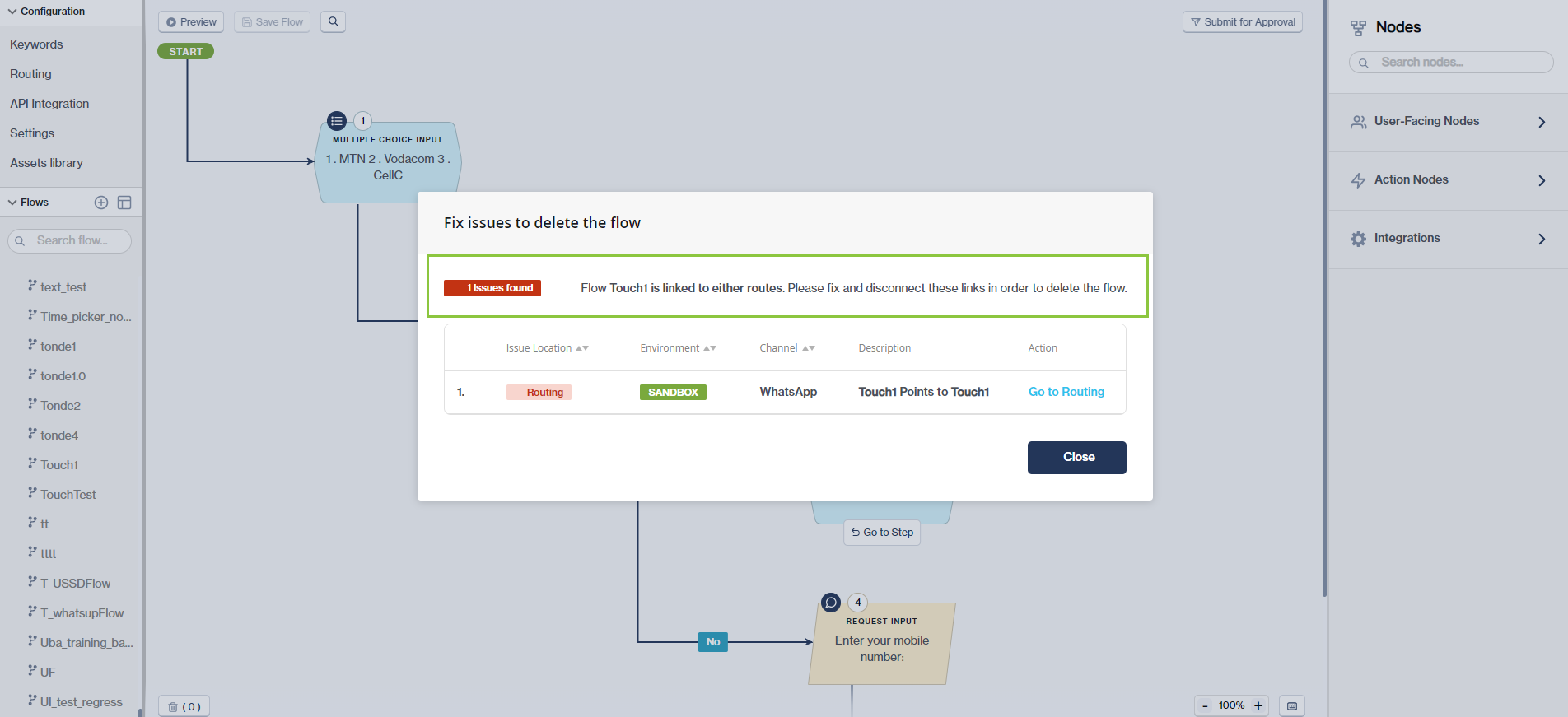
If the flow is linked to other flows, routes, or keywords, you have to disconnect the linked flow/route/keyword before you can delete the flow.
A Chat Flow administrator must first approve a deletion request from the Manage and approve flows section before the flow will be removed.
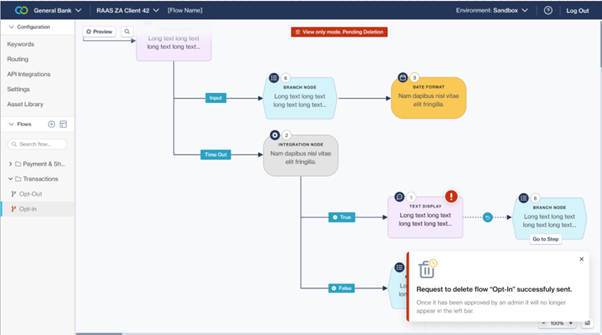
The image below shows the screen when a request to delete a flow from production has been submitted for approval.