# Send Form

{% hint style="info" %}
🍏 Only available on the **Apple Messages for Business** channel.&#x20;
{% endhint %}

With the *Send Form* node, you can create rich, multipage interactive forms for customers to complete on their mobile devices. &#x20;

## Configure the node

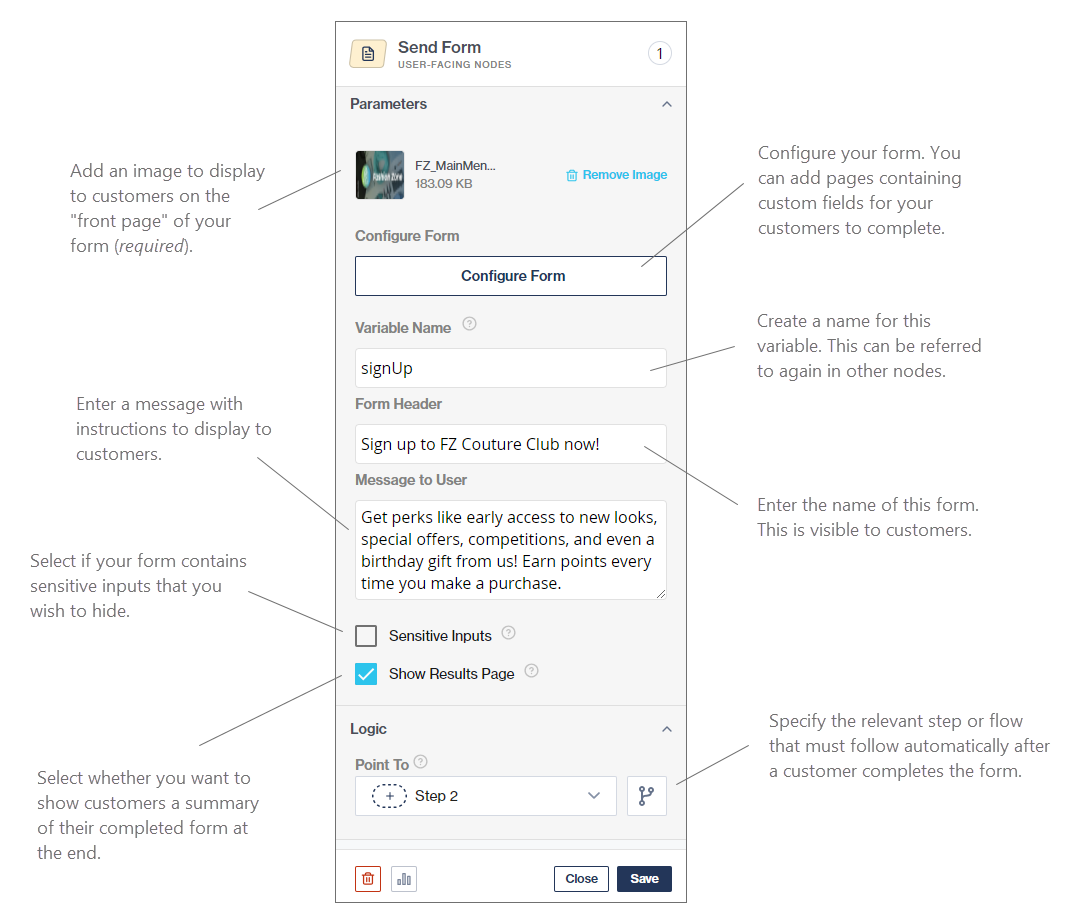
<figure><img src="/files/dvAkjLvA7ceCcKC50X0h" alt="" width="563"><figcaption><p>Setup of Send Form node</p></figcaption></figure>

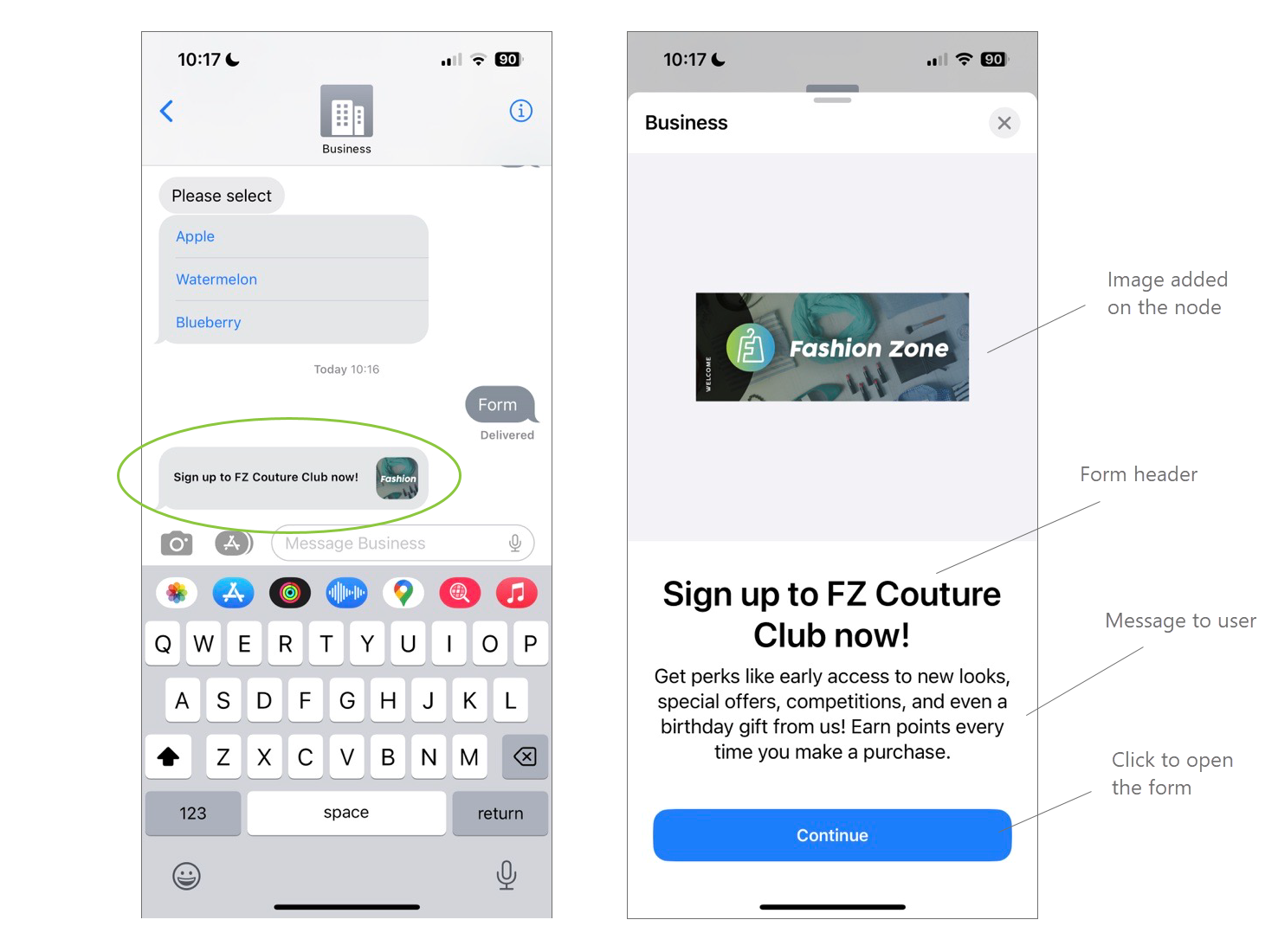
<figure><img src="/files/dlY7wfuqGFgxKdBUNxpo" alt="" width="563"><figcaption><p>Send Form node as displayed on a customer's device</p></figcaption></figure>

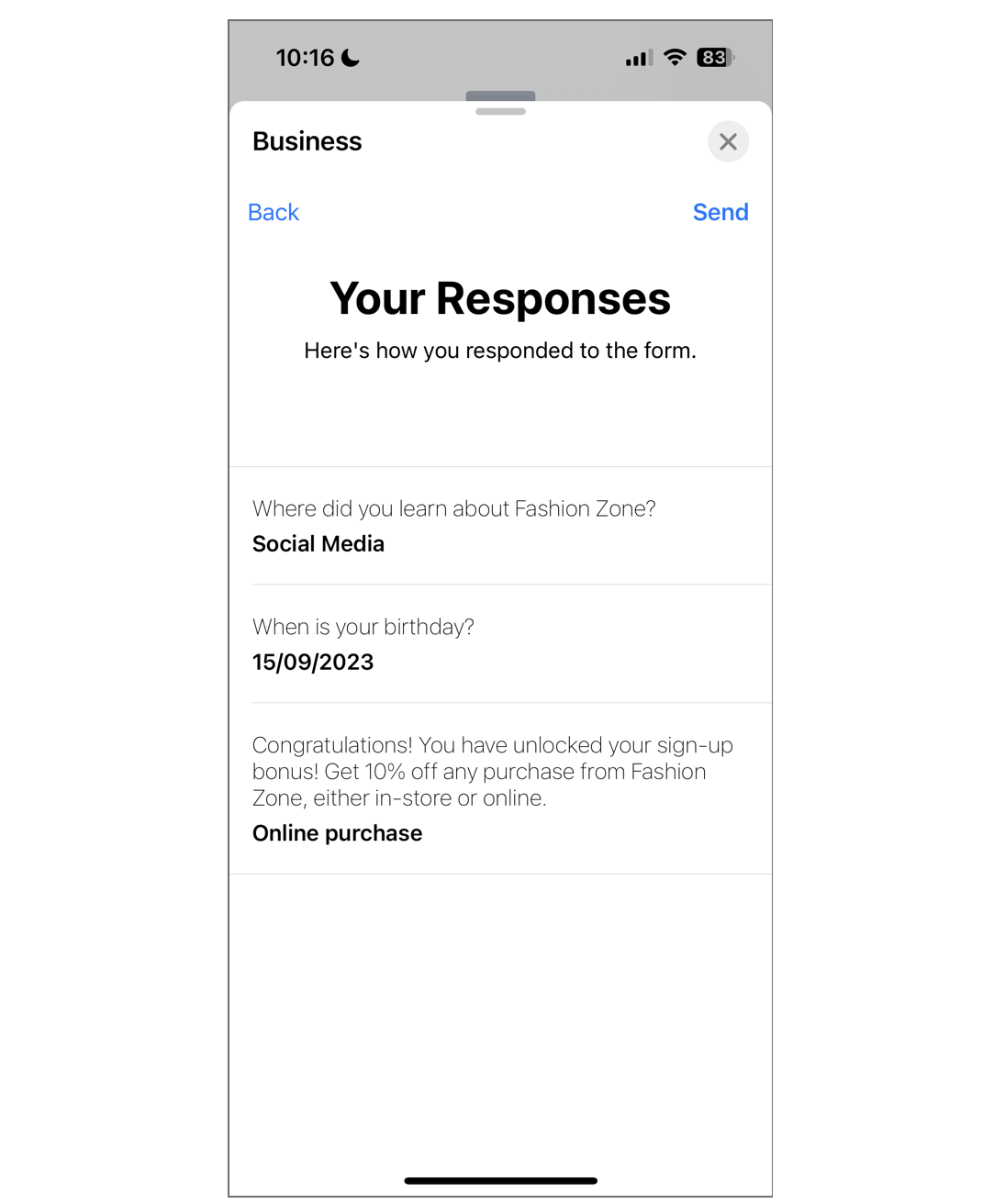
If you've selected the "Show Results Page" option when configuring the node (see above), a summary of the customer's responses is shown to them upon completing the form. They have the option to send the form if they are happy with their responses, or to step back and amend their answers if they wish.

<figure><img src="/files/bZws8AFbGJ4EsOXOfY3y" alt="" width="375"><figcaption><p>Summary of customer's responses to the form as displayed on their device.</p></figcaption></figure>

## Configure the form

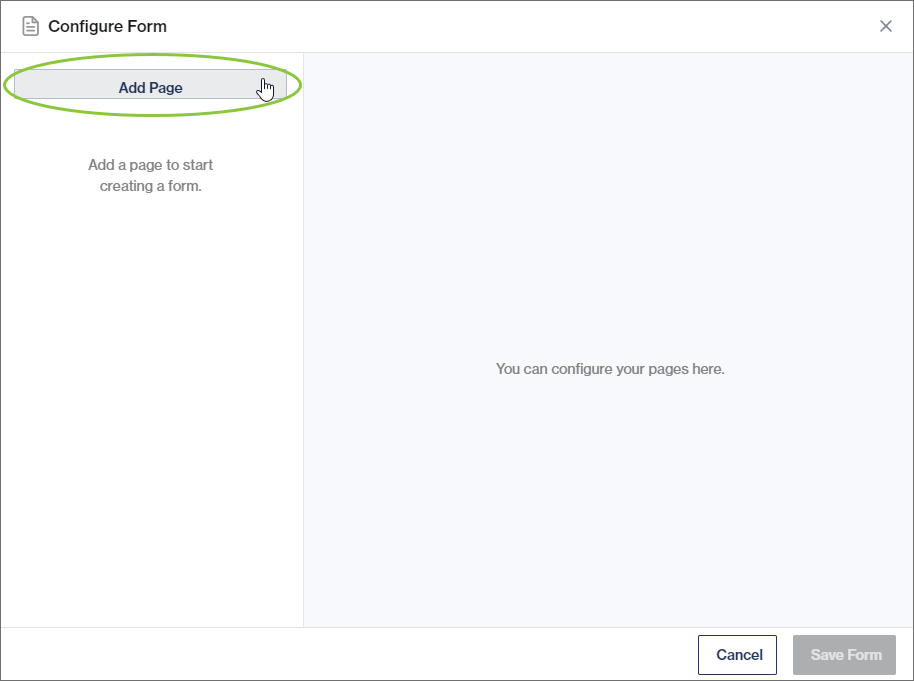
1. When configuring the node, click on *Configure Form* (as shown above).&#x20;
2. Build out your form by adding pages and configuring each page.&#x20;
   * You can add as many pages as you want, but always keep the customer's experience in mind.
   * Drag-and-drop the pages on the left to rearrange them.
   * Delete pages by hovering over the page on the left and clicking the "bin" icon.

<figure><img src="/files/FMFIRidzJJDBJ0K839lF" alt="" width="563"><figcaption></figcaption></figure>

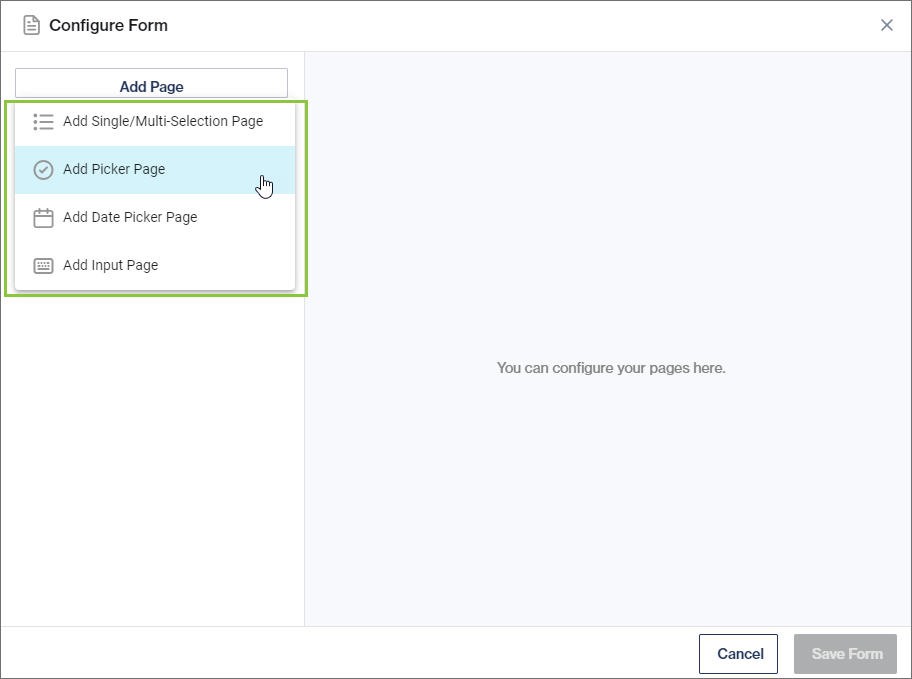
3. You can select from the following page types:

* [Single/Multi-Selection Page](#add-single-multi-selection-page)
* [Picker Page](#add-picker-page)&#x20;
* [Date Picker Page](#add-date-picker-page)&#x20;
* [Input Page](#add-input-page)

4. Click *Save Form* once you are happy.

When a customer reaches this node in the workflow, they have to complete the form before they can continue with the next step/flow as configured on the [node ](#configure-the-node)above.

<figure><img src="/files/x1mVr3tQHJYY0cbnc3RB" alt="" width="563"><figcaption><p>Select the type of page you want to add.</p></figcaption></figure>

### Add Single/Multi-Selection Page

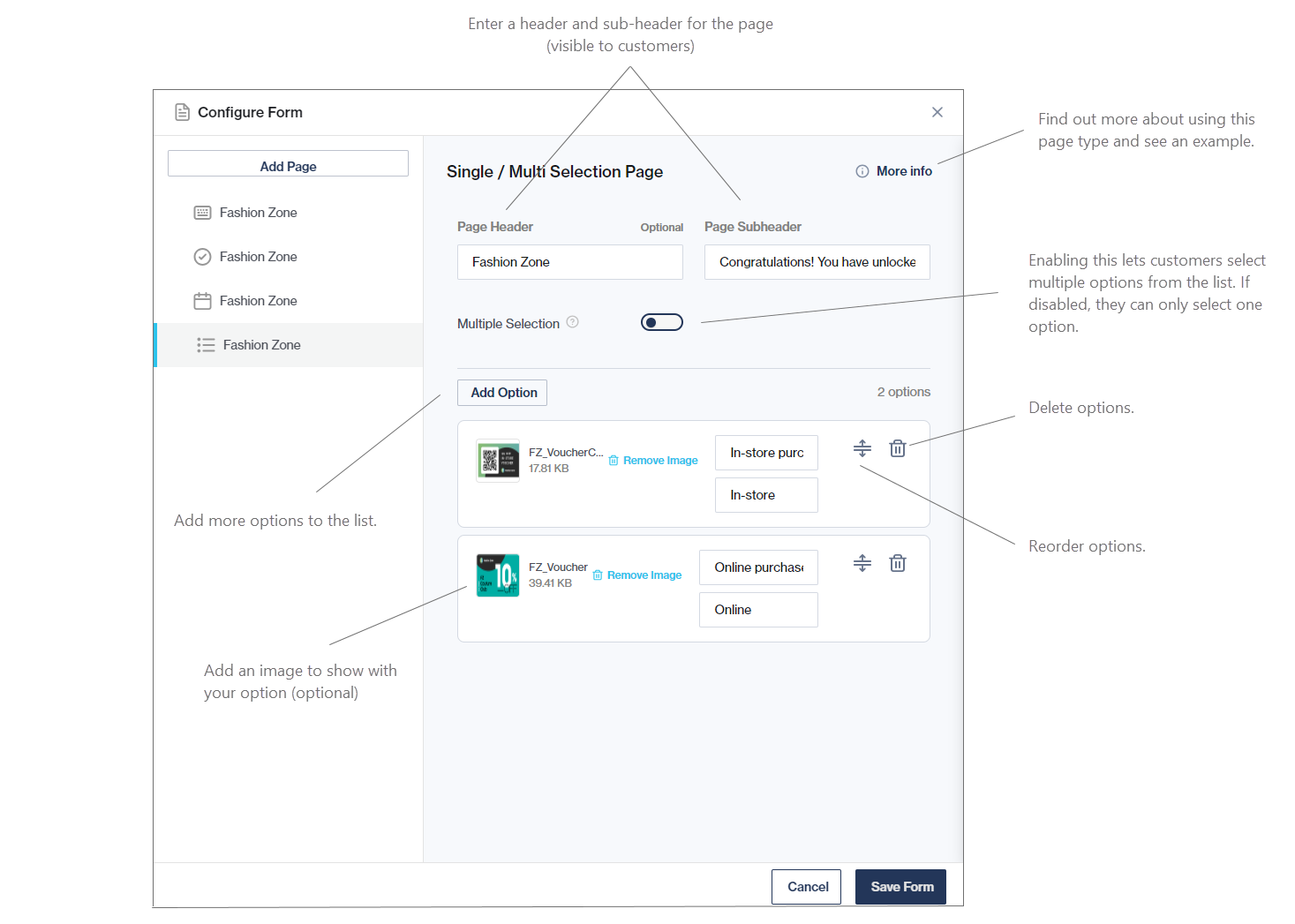
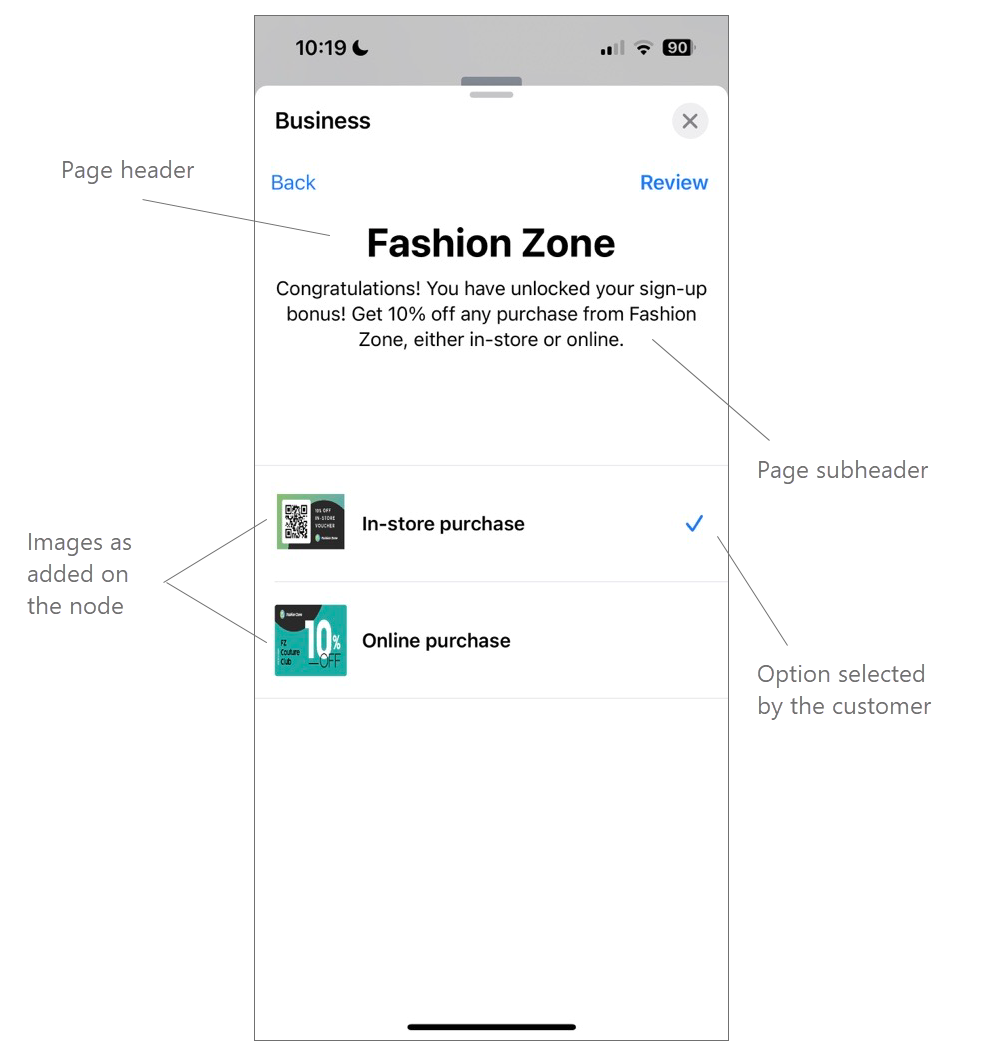
This page type allows customers to select one or more options from a list.

<figure><img src="/files/hb9NtTNO0iRfaGJIrBoG" alt=""><figcaption><p>Configure a Single/Multi Selection page</p></figcaption></figure>

<figure><img src="/files/ncSEQZDyd4U7feXZYJSn" alt="" width="375"><figcaption><p>Single/Multi Selection page as displayed to customers on their device</p></figcaption></figure>

### Add Picker Page

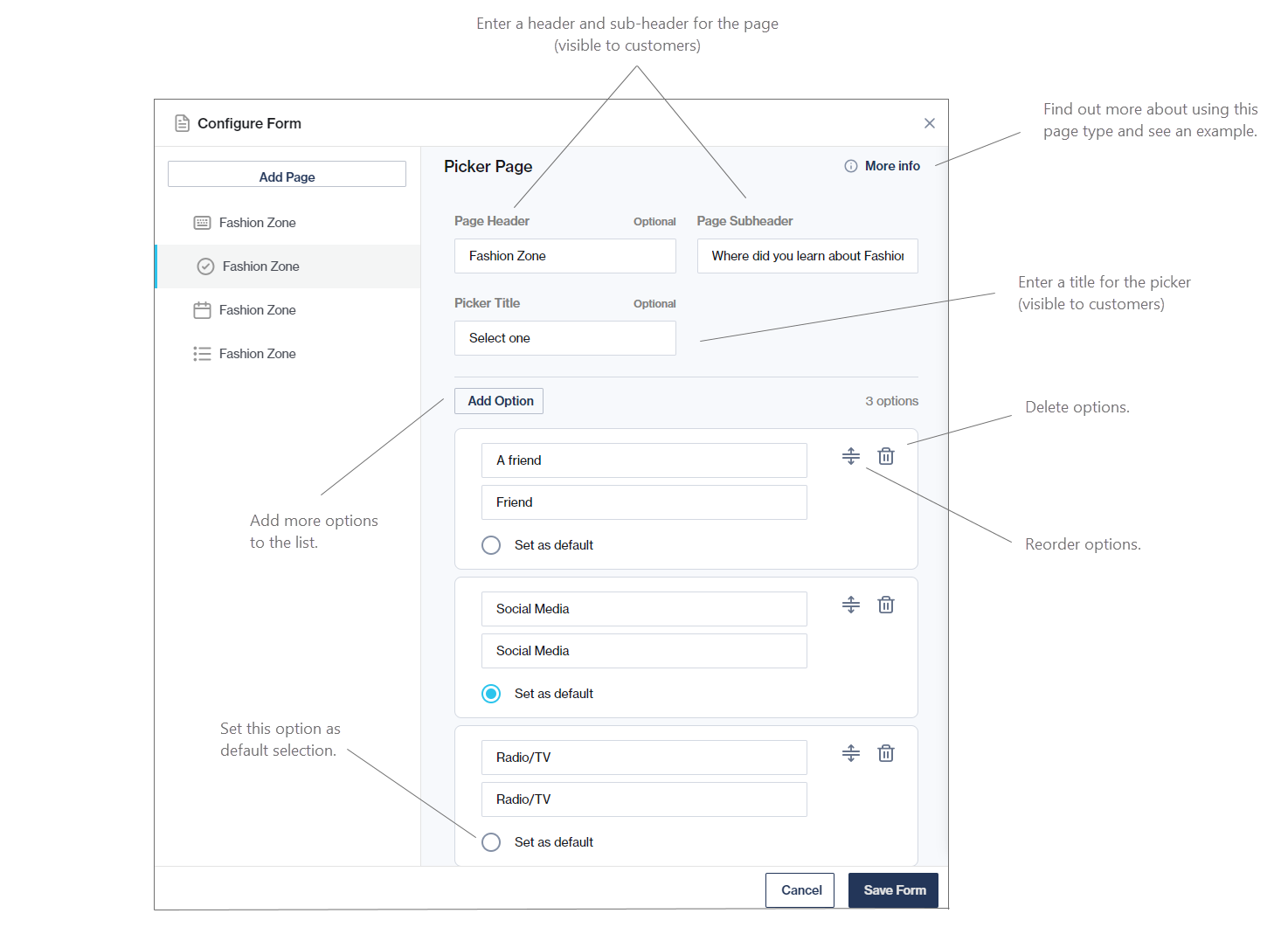
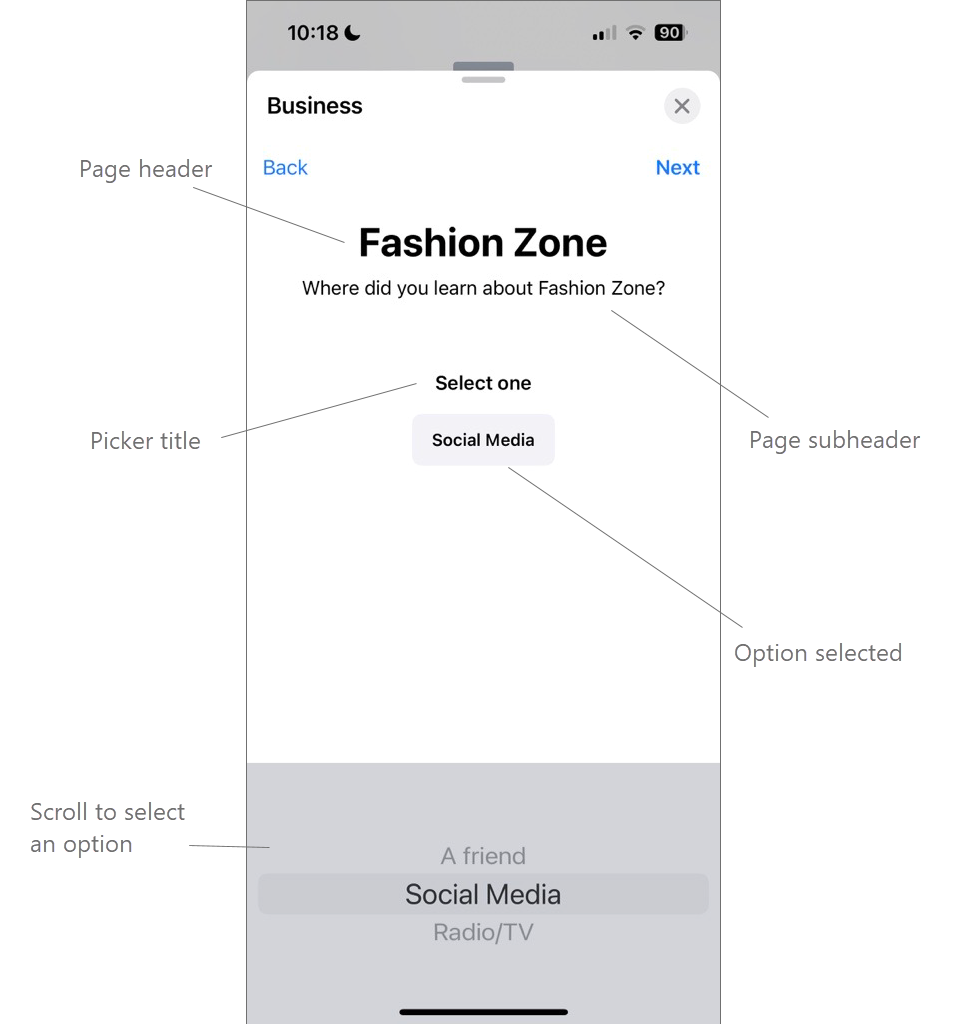
This allows customers to select one option from a scrollable pre-configured list.

<figure><img src="/files/eSfS892OUIm4vHZ0jUJu" alt=""><figcaption><p>Configure a Picker page</p></figcaption></figure>

<figure><img src="/files/yqUAV4ifFgzFga7b0aG1" alt="" width="375"><figcaption><p>Picker page as displayed to customers on their device</p></figcaption></figure>

### Add Date Picker Page

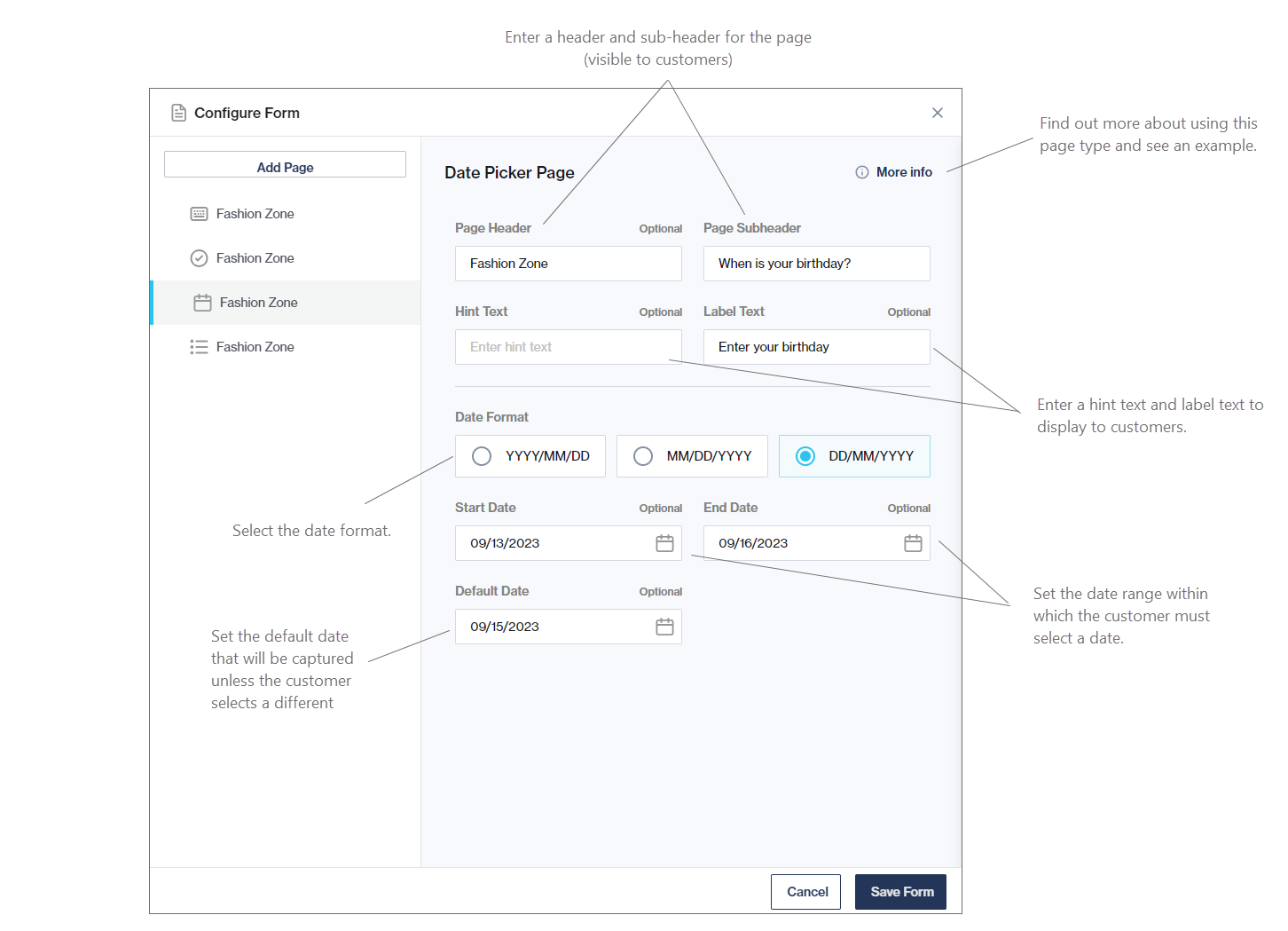
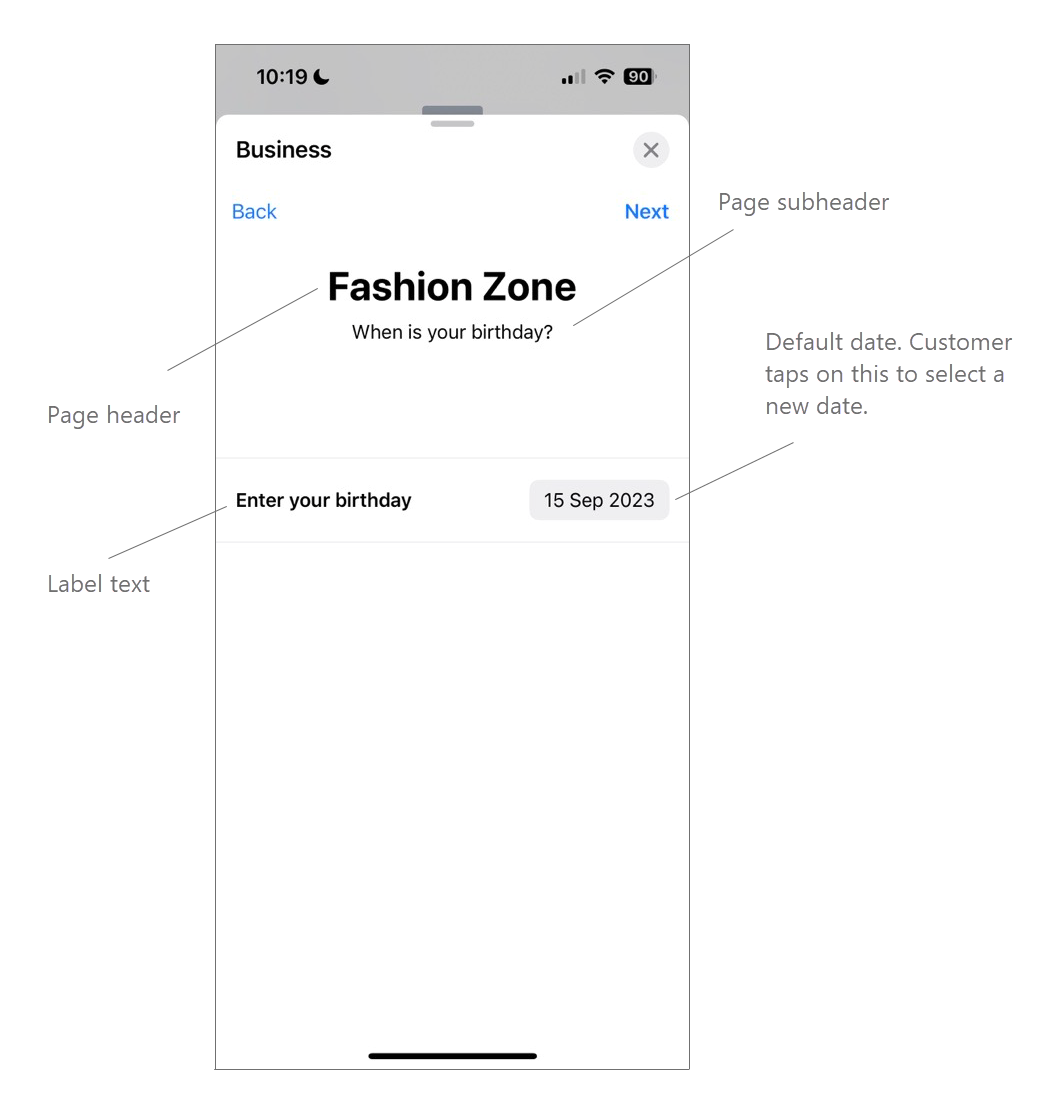
Use the Date Picker page to ask customers to select a day, month, and year within a set date range.

<figure><img src="/files/3Rpvg7XwmY1JaF3kRogE" alt=""><figcaption><p>Configure a Date Picker page</p></figcaption></figure>

<figure><img src="/files/gAPeQiax0VZMSwQvFcVg" alt="" width="375"><figcaption><p>Date Picker page as displayed to customers on their device</p></figcaption></figure>

### Add Input Page

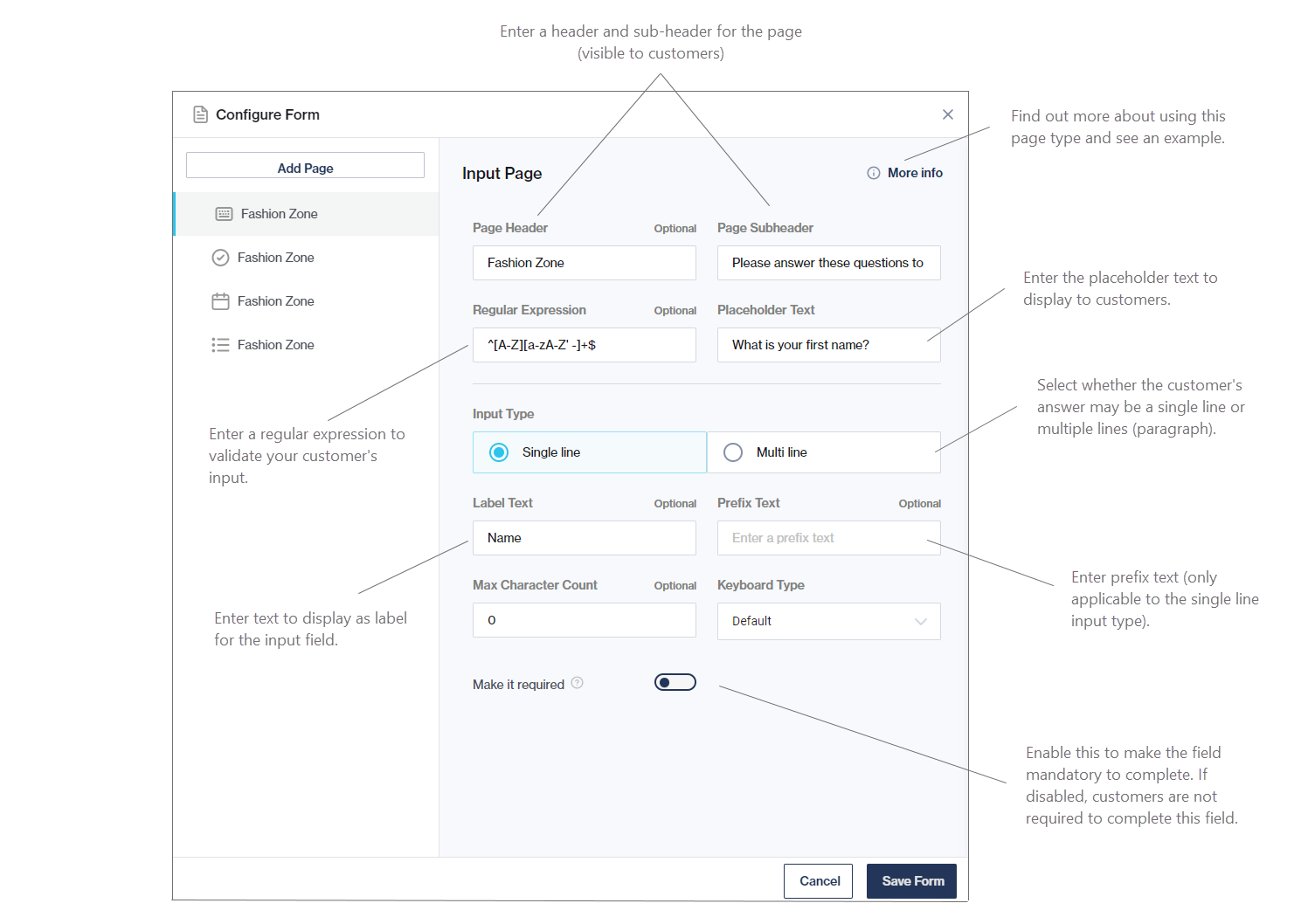
<figure><img src="/files/ViZzLrxqwMRQAcEQcXuj" alt=""><figcaption><p>Configure an Input page</p></figcaption></figure>

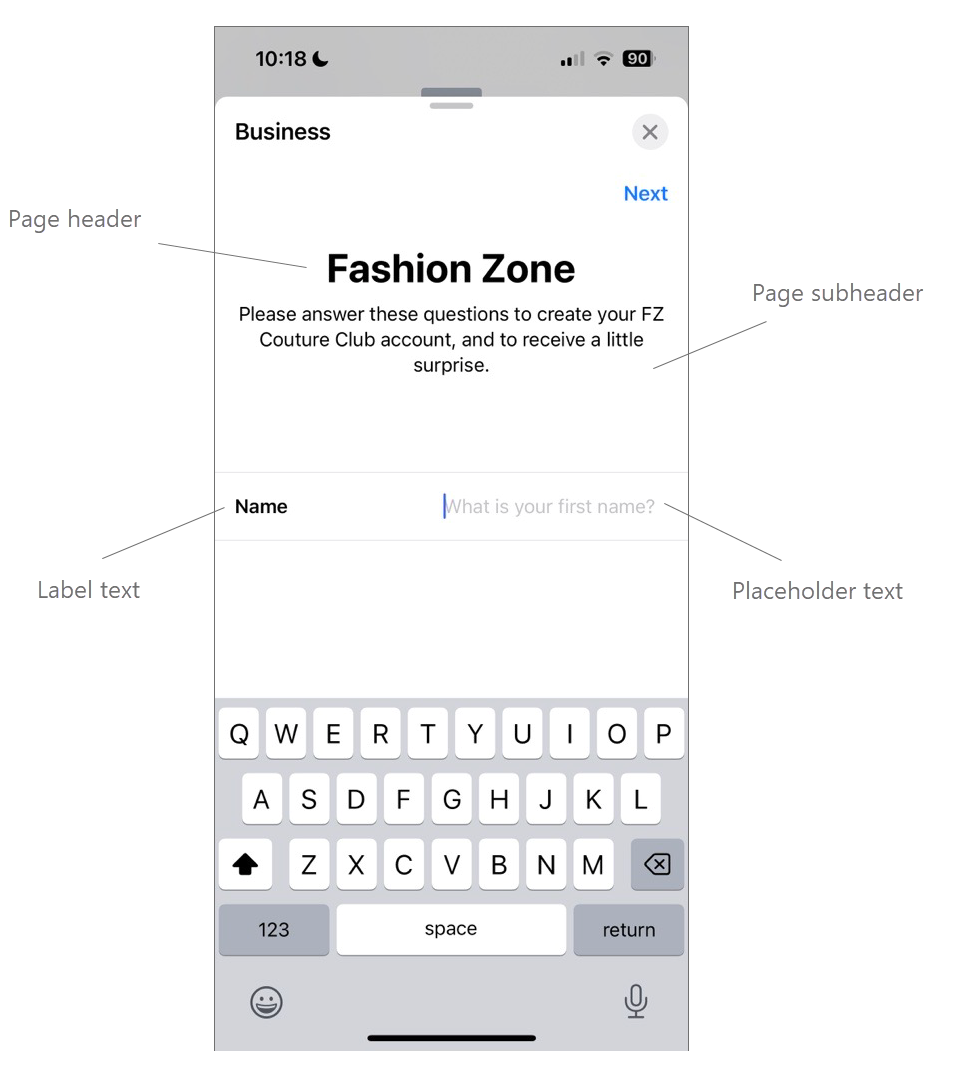
<figure><img src="/files/WOg4iKrP21PQxgJgPrns" alt="" width="375"><figcaption><p>Input page as displayed to customers on their device</p></figcaption></figure>


---

# Agent Instructions: Querying This Documentation

If you need additional information that is not directly available in this page, you can query the documentation dynamically by asking a question.

Perform an HTTP GET request on the current page URL with the `ask` query parameter:

```
GET https://help.clickatell.com/chat-flow/user-facing-nodes/input-nodes/send-form.md?ask=<question>
```

The question should be specific, self-contained, and written in natural language.
The response will contain a direct answer to the question and relevant excerpts and sources from the documentation.

Use this mechanism when the answer is not explicitly present in the current page, you need clarification or additional context, or you want to retrieve related documentation sections.