> For the complete documentation index, see [llms.txt](https://help.clickatell.com/llms.txt). Markdown versions of documentation pages are available by appending `.md` to page URLs; this page is available as [Markdown](https://help.clickatell.com/chat-flow/channel-capabilities/use-web-chat-with-chat-flow/link-web-chat-to-a-flow.md).
# Link Web Chat to a Flow
When a Web Chat widget is connected to a Chat Flow node, it opens up the power of a workflow for a web-based experience.
**How to link Web Chat to a Flow**
1. In Chat Flow, select the production environment.
2. Click on the ‘Routing’ keyword under ‘Configuration’, and then select the Web Chat icon. If the icon is not visible it will need to be added via an admin interface –[ reach out](https://www.clickatell.com/contact-support/) to to the Clickatell team for assistance.
3. In the first column, titled “API ID, paste the widget id (received as part of the setup), and select the flow node, and starting position.
4. Save the details and confirm using the Web Chat widget that the flow is returning content as expected.
**How to add a keyword**
Using a keyword is a convenient way to target a specific workflow for a web-based experience.
1. In Chat Flow, select the production environment.
2. Click on the ‘Keywords’ option under ‘Configuration’, and then select the Web Chat icon. If the icon is not visible it will need to be added via an admin interface – reach out to the Web Chat product manager for assistance.
3. Click the “New Keyword Group”, and type the relevant keyword into the text box. Next, select the flow node and starting position.
4. Save the details and confirm using the Web Chat widget that the flow is returning content as expected when using the keyword.
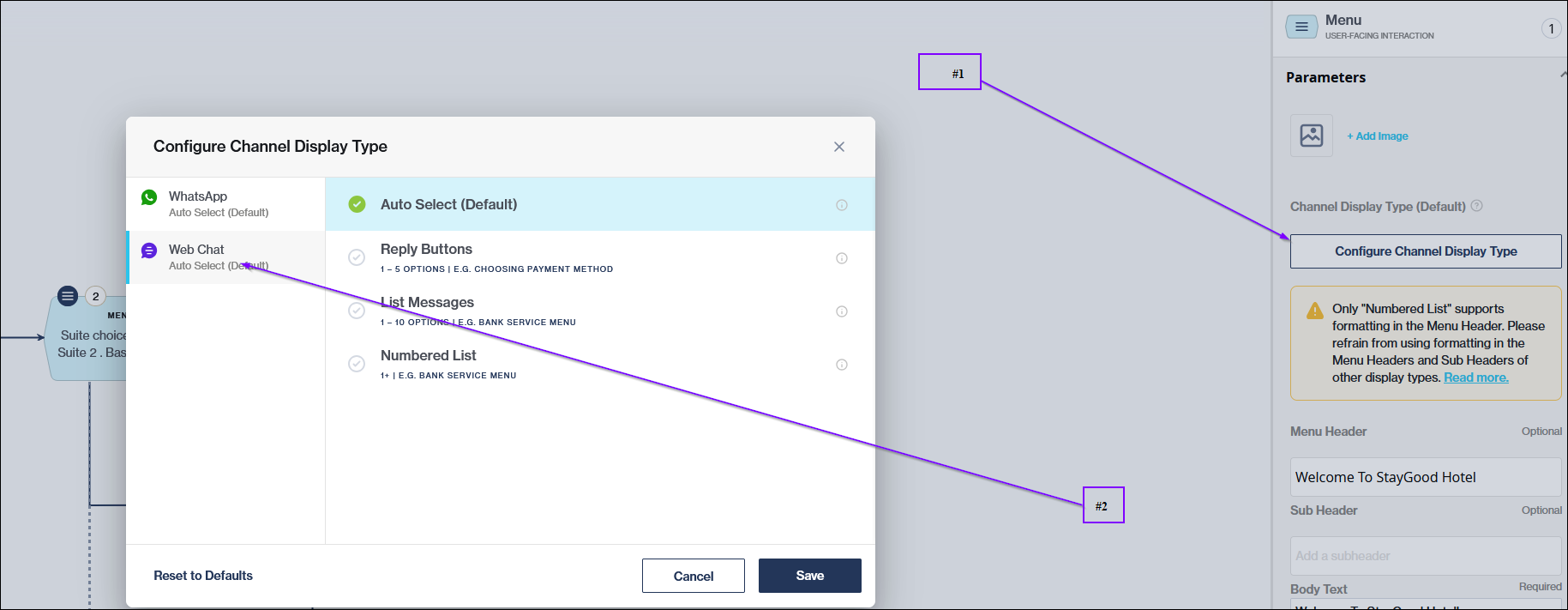
**How to display a menu node as list buttons**
There are some settings (e.g. for menus) for the Web Chat channel to make it display more appropriately:
* Reply Buttons (less than 5 options)
* List buttons (less than 10 options)
* Numbered lists (10 or more)
**Adding Chat Desk**
Adding a [Chat Desk node](/chat-flow/user-facing-nodes/product-nodes/chat-desk-node.md) to the relevant flow will automatically enable the powerful agent desk features to be available via Web Chat. When doing this, be sure to select the correct sandbox and production keys.
**Adding Clickatell AI**
Adding a [Clickatell AI node](/chat-flow/user-facing-nodes/product-nodes/clickatell-ai-node.md) to the relevant flow will make the AI assistant available on Web Chat. Ensure that the correct assistant's details are selected when doing this.
---
# Agent Instructions
This documentation is published with GitBook. GitBook is the documentation platform designed so that both humans and AI agents can read, navigate, and reason over technical content effectively. Learn more at gitbook.com.
## Querying This Documentation
If you need additional information that is not directly available in this page, you can query the documentation dynamically by asking a question.
Perform an HTTP GET request on the current page URL with the `ask` query parameter, and the optional `goal` query parameter:
```
GET https://help.clickatell.com/chat-flow/channel-capabilities/use-web-chat-with-chat-flow/link-web-chat-to-a-flow.md?ask=&goal=
```
`ask` is the immediate question: it should be specific, self-contained, and written in natural language.
`goal` is optional and describes the broader end goal you are ultimately trying to accomplish on behalf of the user. GitBook uses it to tailor the answer towards what is most useful for that goal.
The response will contain a direct answer to the question and relevant excerpts and sources from the documentation.
Use this mechanism when the answer is not explicitly present in the current page, you need clarification or additional context, or you want to retrieve related documentation sections.