> For the complete documentation index, see [llms.txt](https://help.clickatell.com/llms.txt). Markdown versions of documentation pages are available by appending `.md` to page URLs; this page is available as [Markdown](https://help.clickatell.com/chat-flow/action-nodes/send-template.md).
# Send Template
The *Send Template* action node enables you to send pre-approved [WhatsApp message templates](/chat-flow/channel-capabilities/use-whatsapp-with-chat-flow/send-whatsapp-message-templates.md) to your customers from within Chat Flow.
You can use this node in any of your workflows, but it is typically used in [Dynamic API flows](/chat-flow/workflow-management/create-new-flow/dynamic-api-workflows.md) to initiate WhatsApp conversations with customers.
{% hint style="info" %}
When configuring the node, you can only select from the **approved** WhatsApp templates on your account. To find out how to apply for and manage your WhatsApp templates, see [here](/whatsapp/channel-capabilities/whatsapp-message-templates/add-message-templates.md).
Note that this node is not supported on the [Previewer](/chat-flow/workflow-management/using-the-previewer.md).
{% endhint %}
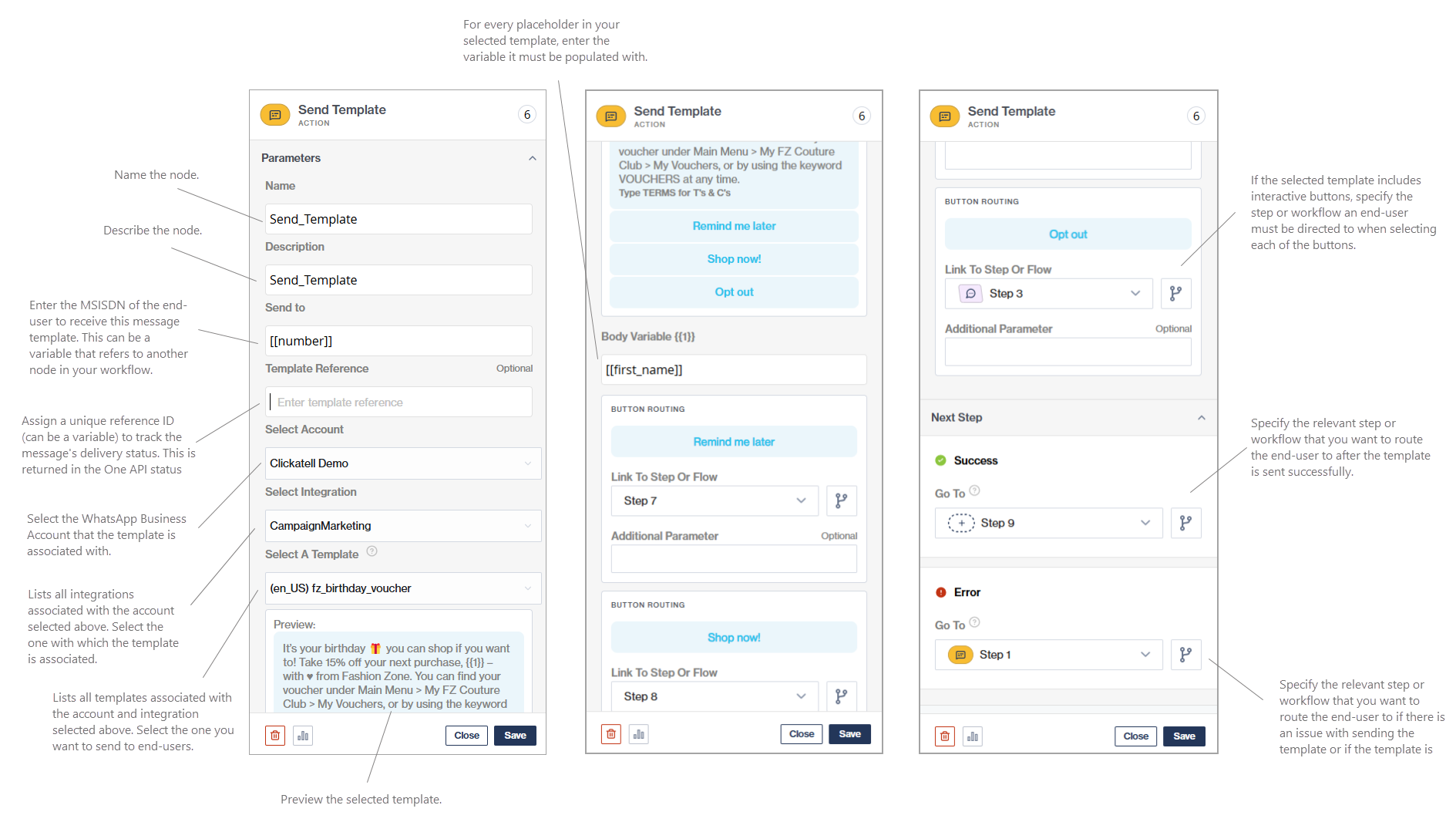
Configuring the Send Template action node
Setup of a Send Template node.
**Manual JSON Config** allows you to configure the Send Template node dynamically at runtime using either a flow variable or a session variable that contains the template configuration. You can provide the full template payload programmatically, rather than pre-selecting a single template and defining its values in the node UI. This makes it possible to use one Send Template node to send different approved WhatsApp templates, populate template parameters dynamically, and include media references such as images or documents when required. This option is especially useful in [dynamic workflows](/chat-flow/workflow-management/create-new-flow/dynamic-api-workflows.md) where the template name, parameters, or media need to be determined during the flow, for example from an API response or values set earlier in the session.
You can use the *Send Template* node to send any type of template. Depending on the type of template you select, the fields to configure adapt accordingly.
#### Text templates
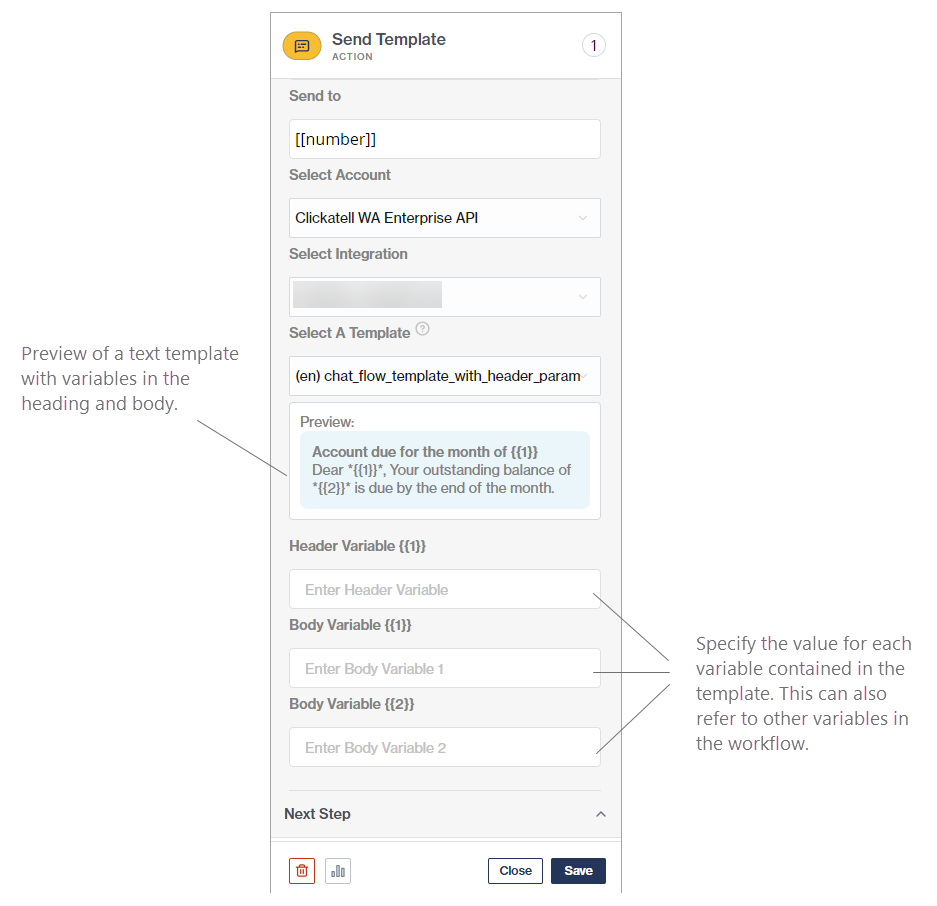
Below is an example of how to configure the node if a text template is selected.
Example of a text template.
#### Templates with interactive buttons
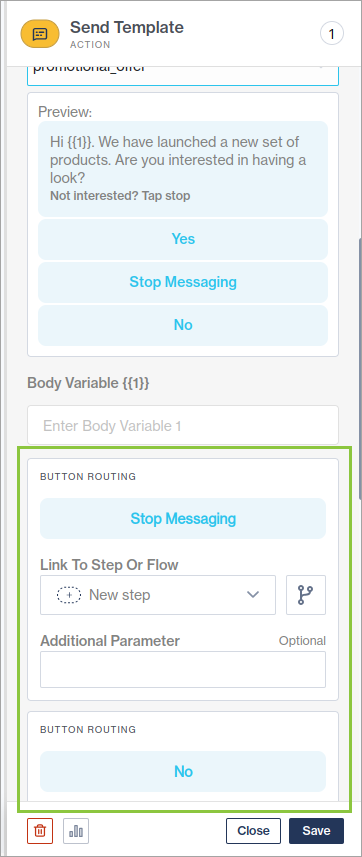
Below is an example of configuring the node if a template with interactive buttons is selected.
The flow-builder can configure the next flow/step to execute when the customer selects each button. Additional data that needs to be sent for postback data can be added if required.
{% hint style="info" %}
Maximum of 10 buttons allowed.
{% endhint %}
Example of a template with interactive buttons.
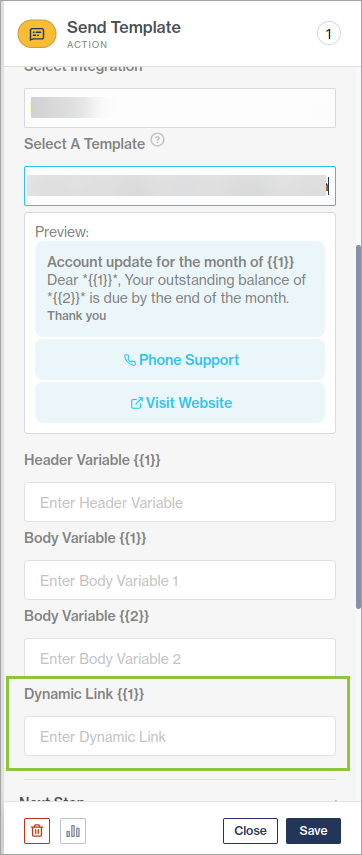
If the template contains a dynamic URL, the flow-builder must capture the variable's value in the field as shown below.
#### Templates with media headers
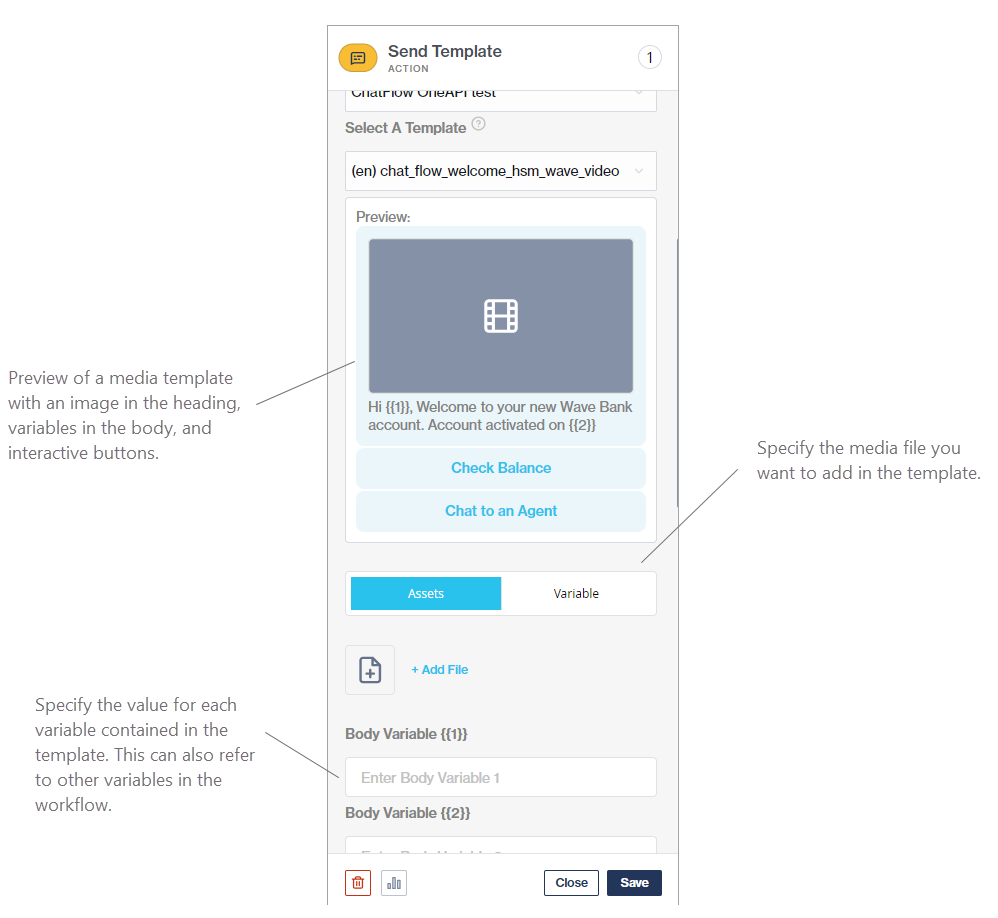
Below is an example of configuring the node if a media template is selected. You can add images, videos, and documents in the header of your template.
The flow-builder must specify the media file to add to this template.
{% hint style="info" %}
The preview will not show the media file, it will only be added upon sending.
{% endhint %}
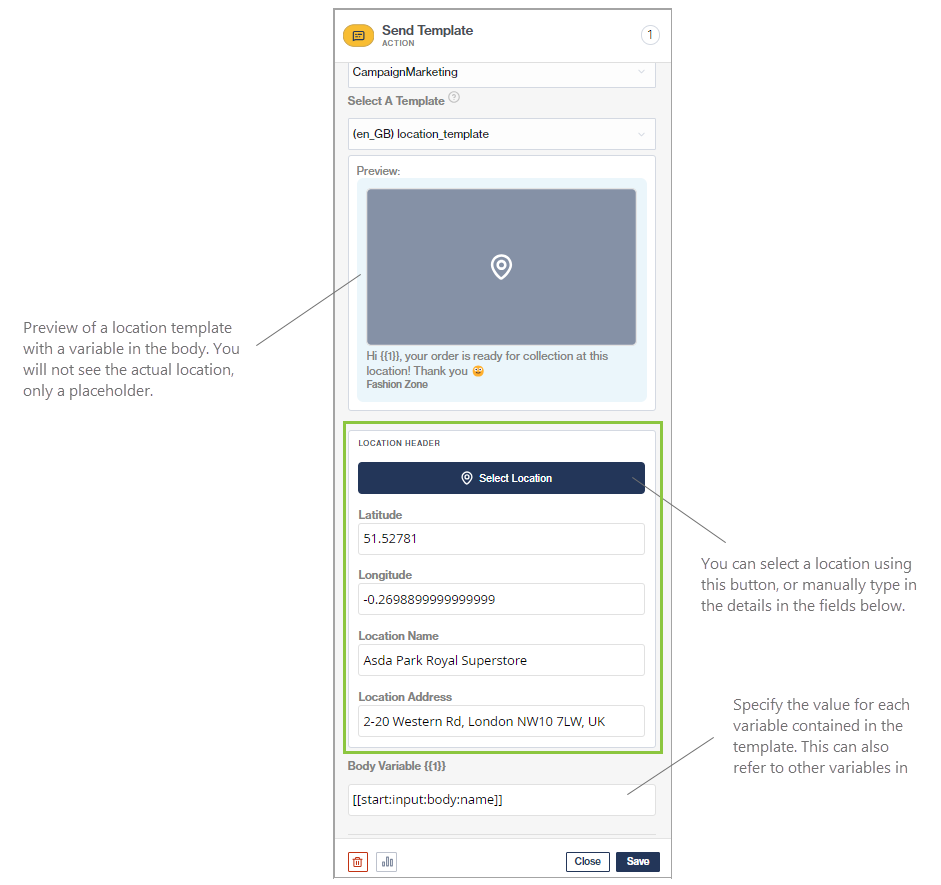
#### Templates with location headers
Below is an example of configuring the node if a location template is selected.
{% hint style="info" %}
Only supported on Meta's Cloud environment.
{% endhint %}
---
# Agent Instructions
This documentation is published with GitBook. GitBook is the documentation platform designed so that both humans and AI agents can read, navigate, and reason over technical content effectively. Learn more at gitbook.com.
## Querying This Documentation
If you need additional information that is not directly available in this page, you can query the documentation dynamically by asking a question.
Perform an HTTP GET request on the current page URL with the `ask` query parameter, and the optional `goal` query parameter:
```
GET https://help.clickatell.com/chat-flow/action-nodes/send-template.md?ask=&goal=
```
`ask` is the immediate question: it should be specific, self-contained, and written in natural language.
`goal` is optional and describes the broader end goal you are ultimately trying to accomplish on behalf of the user. GitBook uses it to tailor the answer towards what is most useful for that goal.
The response will contain a direct answer to the question and relevant excerpts and sources from the documentation.
Use this mechanism when the answer is not explicitly present in the current page, you need clarification or additional context, or you want to retrieve related documentation sections.
.gif)