> For the complete documentation index, see [llms.txt](https://help.clickatell.com/llms.txt). Markdown versions of documentation pages are available by appending `.md` to page URLs; this page is available as [Markdown](https://help.clickatell.com/chat-desk/chat-desk-dashboard/settings/tags-management.md).
# Chat tags
As a Supervisor, you can create custom tags that your agents can use to categorize chats. When [closing a chat](/chat-desk/agent-desk/manage-chat-queues-agent-desk/close-chat.md), agents can label the chat with one of these custom labels.
## **Add, edit, and disable/enable tags**
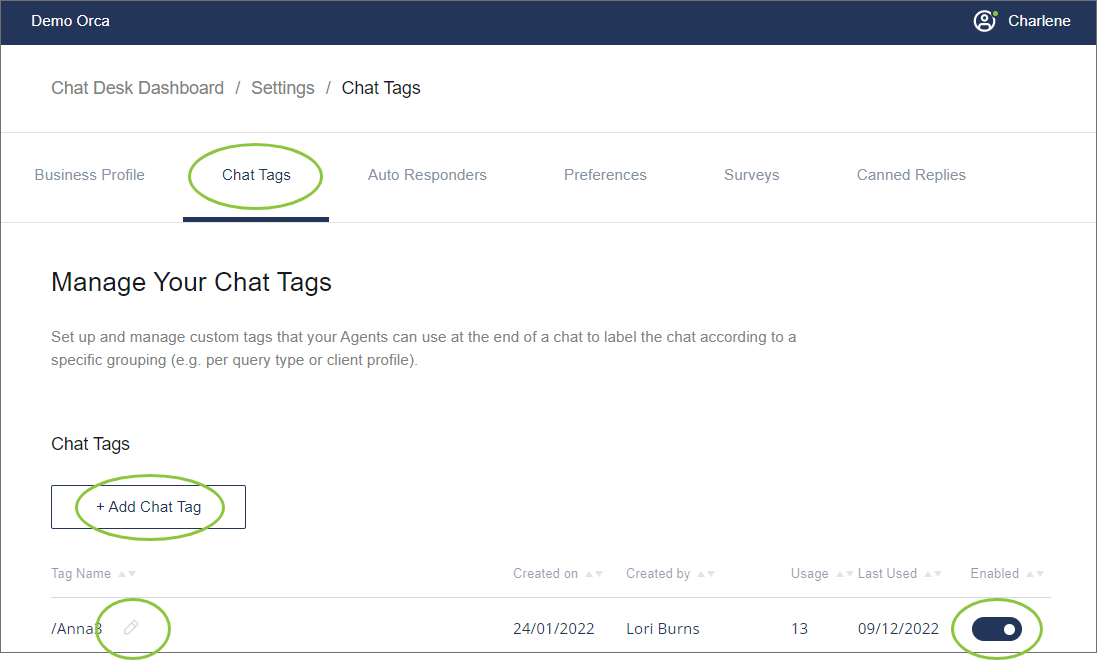
1. Navigate to [*Settings* ](/chat-desk/chat-desk-dashboard/settings.md)*->Chat Tags.*
* Your existing tags are displayed.
2. To **add** a new tag, click the *+Add Chat Tag* button, enter the name of the new tag, and press *Enter*.
3. Click the *pencil* icon (when hovering over the tag) to **edit** the tag name.
4. Use the toggle to manage the tag's **availability** to agents.
{% hint style="info" %}
Disabling a tag only disables it for future use. It doesn't affect chats that have already been tagged.
{% endhint %}
---
# Agent Instructions
This documentation is published with GitBook. GitBook is the documentation platform designed so that both humans and AI agents can read, navigate, and reason over technical content effectively. Learn more at gitbook.com.
## Querying This Documentation
If you need additional information that is not directly available in this page, you can query the documentation dynamically by asking a question.
Perform an HTTP GET request on the current page URL with the `ask` query parameter, and the optional `goal` query parameter:
```
GET https://help.clickatell.com/chat-desk/chat-desk-dashboard/settings/tags-management.md?ask=&goal=
```
`ask` is the immediate question: it should be specific, self-contained, and written in natural language.
`goal` is optional and describes the broader end goal you are ultimately trying to accomplish on behalf of the user. GitBook uses it to tailor the answer towards what is most useful for that goal.
The response will contain a direct answer to the question and relevant excerpts and sources from the documentation.
Use this mechanism when the answer is not explicitly present in the current page, you need clarification or additional context, or you want to retrieve related documentation sections.