> For the complete documentation index, see [llms.txt](https://help.clickatell.com/llms.txt). Markdown versions of documentation pages are available by appending `.md` to page URLs; this page is available as [Markdown](https://help.clickatell.com/chat-desk/chat-desk-dashboard/settings.md).
# Configure Chat Desk settings
As a Supervisor, you can configure settings and preferences so that your Chat Desk product is best suited to serve your needs.
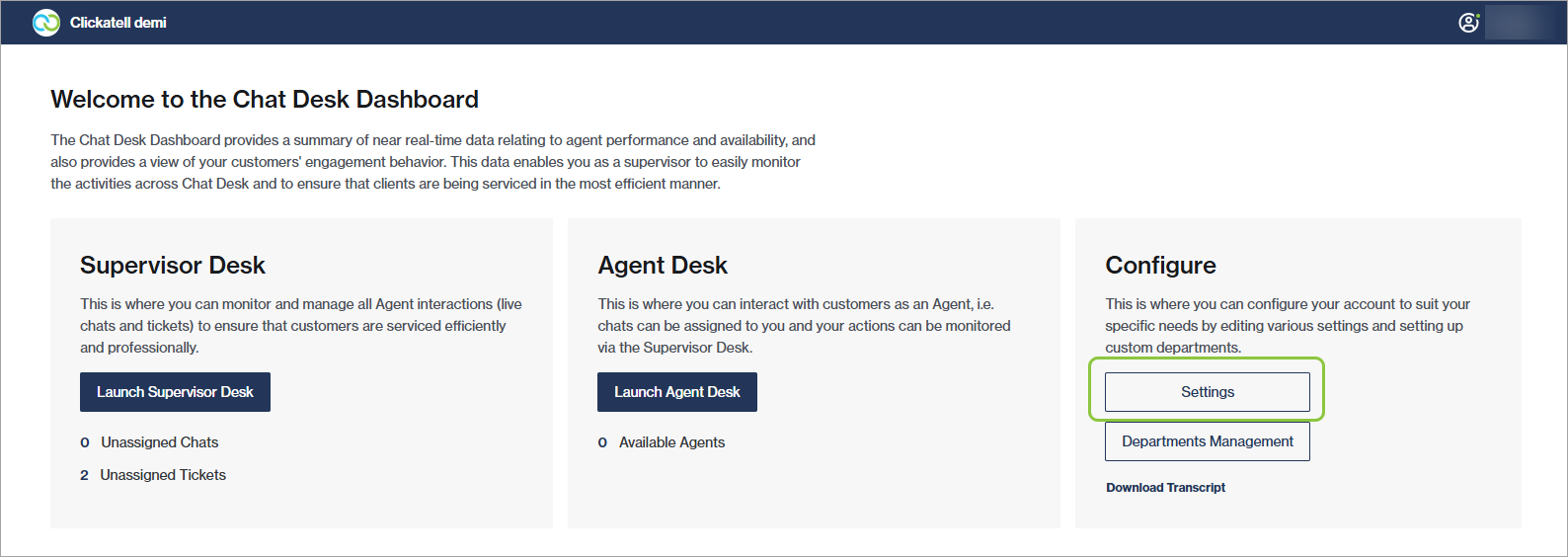
1. From the [*Chat Desk dashboard*](/chat-desk/chat-desk-dashboard/dashboard.md)*,* click *Settings.*
2\. From here you can add and edit:
* [**Business profile**](/chat-desk/chat-desk-dashboard/settings/about-your-business.md)**:** Update business name, industry, logo, and location; set agent support hours.
* [**Chat tags**](/chat-desk/chat-desk-dashboard/settings/tags-management.md)**:** Manage custom tags that agents can use to label chats.
* [**Auto-responders**](/chat-desk/chat-desk-dashboard/settings/auto-responders.md)**:** Enable and edit messages sent automatically to customers in specific situations.
* [**Preferences**](/chat-desk/chat-desk-dashboard/settings/chat-desk.md)**:** Set preferences around agent capacity, chat routing and distribution behavior, timers, and timeouts.
* [**Surveys**](/chat-desk/chat-desk-dashboard/settings/survey-management.md)**:** Create surveys to send to your customers at the end of a chat to gather valuable information about their overall experience and satisfaction levels.
* [**Canned Replies**](/chat-desk/chat-desk-dashboard/settings/canned-replies.md)**:** Create pre-written replies that agents can use in their chats to save time resolving tickets.
* [**Integrations**](/chat-desk/chat-desk-dashboard/settings/integrations.md)**:** Select the customer fields that agents can view in the Agent Desk for each of the 3rd party applications active in your Clickatell account.
* [**Clickatell AI**](/chat-desk/chat-desk-dashboard/settings/clickatell-ai.md): Enable/disable an AI assistant trained on your business information to help your agents respond quicker and more accurately using AI-generated suggested responses.
---
# Agent Instructions
This documentation is published with GitBook. GitBook is the documentation platform designed so that both humans and AI agents can read, navigate, and reason over technical content effectively. Learn more at gitbook.com.
## Querying This Documentation
If you need additional information that is not directly available in this page, you can query the documentation dynamically by asking a question.
Perform an HTTP GET request on the current page URL with the `ask` query parameter, and the optional `goal` query parameter:
```
GET https://help.clickatell.com/chat-desk/chat-desk-dashboard/settings.md?ask=&goal=
```
`ask` is the immediate question: it should be specific, self-contained, and written in natural language.
`goal` is optional and describes the broader end goal you are ultimately trying to accomplish on behalf of the user. GitBook uses it to tailor the answer towards what is most useful for that goal.
The response will contain a direct answer to the question and relevant excerpts and sources from the documentation.
Use this mechanism when the answer is not explicitly present in the current page, you need clarification or additional context, or you want to retrieve related documentation sections.